TikTok LIVE Studio for Windows: Setup and Requirements
TikTok LIVE Studio is a free desktop application that lets Windows users stream directly to TikTok without additional software like OBS. The app handles encoding, scene management, and virtual camera integration, making it simpler than RTMP setup for creators new to streaming. You need a compatible Windows PC, stable internet connection, and a TikTok account with streaming eligibility to get started.
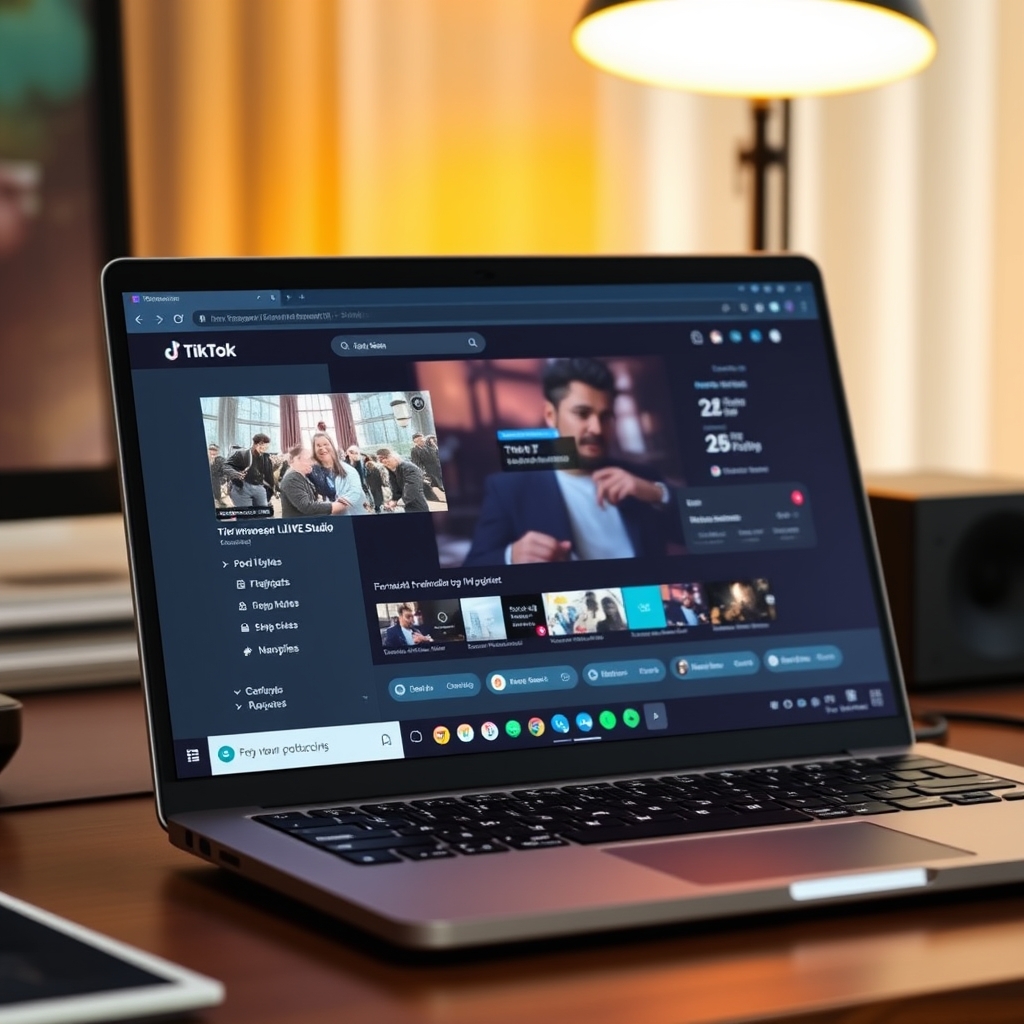
TikTok LIVE Studio is the official desktop streaming tool for Windows creators who want to broadcast without juggling third-party software. It connects your PC directly to TikTok, handles the technical encoding work, and gives you built-in controls for scenes, audio, and bitrate without needing to know RTMP setup or stream keys.
Can you go live through TikTok Studio?
Yes, you can go live through TikTok LIVE Studio, which is TikTok's dedicated application for broadcasting directly from your Windows PC. It is important to distinguish this from TikTok Creator Studio, which is a web-based analytics and content management tool. TikTok LIVE Studio is the actual streaming software that lets you start a live broadcast on TikTok without needing additional third-party applications.
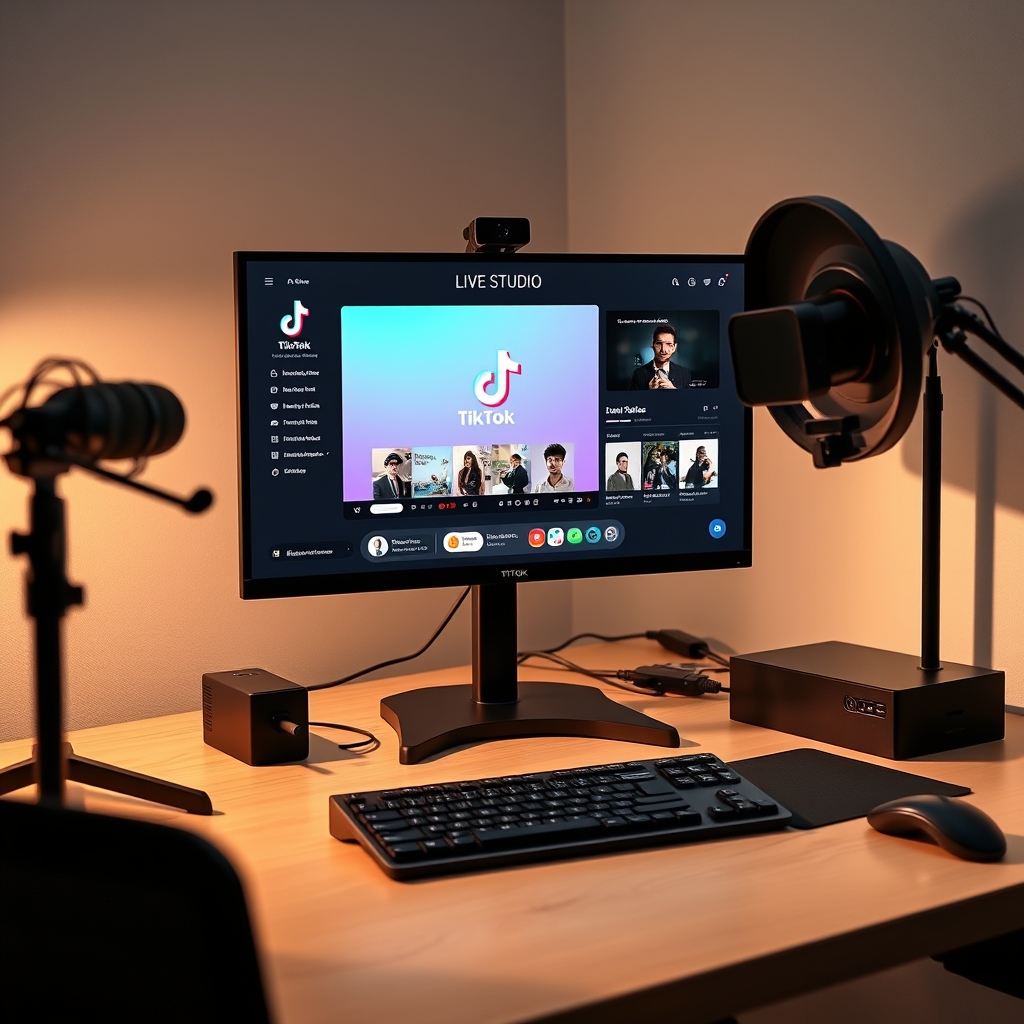
The app consolidates everything you need to stream into one interface. Once you open TikTok LIVE Studio and meet your account's eligibility requirements, you can begin streaming video, audio, and other content directly to your audience. The software handles the broadcast connection, so you do not need to manually configure an RTMP stream key or use external encoding software unless you prefer to do so.
TikTok LIVE Studio supports multiple source types, meaning you can broadcast your webcam feed, screen capture, game footage, or output from a virtual camera. This flexibility makes it straightforward to go live with different types of content in the same session without switching applications or reconfiguring your stream setup.
Before the streaming option becomes available in the app, your TikTok account must meet certain eligibility requirements. These requirements include a minimum account age and follower count, though the exact thresholds vary by region and can change. Once your account qualifies, the livestream button and all broadcasting controls will be active and ready to use.
If you want to broadcast games or interactive content, you can use TikTok LIVE Studio alongside game software or a virtual camera tool. For example, you might run a game in one window and route its output through a virtual camera, then select that camera as your source in TikTok LIVE Studio. This approach keeps everything simple on your end while delivering engaging content to viewers. You can learn more about setting up interactive streams in the guide on how to live stream games on TikTok.
What are the Windows system requirements for TikTok LIVE Studio?
Running TikTok LIVE Studio smoothly on Windows requires a reasonably modern machine. The app itself is not resource-intensive, but streaming at TikTok's native resolution of 1080x1920 with games, overlays, or multiple scenes means your CPU and RAM do the heavy lifting. Before you download, check that your hardware meets or exceeds these specs.
Operating System Windows 10 is the minimum, but Windows 11 is recommended for better stability and driver support. If you are still on Windows 10, make sure you have the latest Windows Update installed, as TikTok LIVE Studio relies on certain platform features that improve with each system patch.
Processor An Intel Core i5 or equivalent AMD Ryzen 5 will run streams, but an i7 or Ryzen 7 is preferred if you plan to encode at high bitrate or run interactive elements during the broadcast. The processor handles the video encoding, so a stronger CPU means less stuttering and more headroom if your scene becomes complex.
RAM Eight gigabytes is the baseline. If you intend to run games alongside your stream, use overlays, or switch between multiple scenes, bump that up to 16 GB. Many streamers discover they need more RAM the moment they add a second application or a web browser into the mix while streaming.
Internet Connection Upload speed matters more than download. Aim for a stable connection of at least 5 Mbps upload. Higher upload speeds—10 Mbps or more—give you room to stream at higher bitrate without risking dropped frames. A wired Ethernet connection is always steadier than Wi-Fi, especially during peak hours.
Disk Space The app takes roughly 500 MB to install. TikTok LIVE Studio streams directly to TikTok's servers rather than recording locally, so you do not need a large chunk of storage reserved for video files or cache. However, leaving at least 1–2 GB free on your drive helps the system run without hiccups.
For a deeper look at what TikTok LIVE Studio requires to run and how to confirm your eligibility to use it, see TikTok LIVE Studio: Access, Requirements & Setup. If you are streaming games, check How to Live Stream Games on TikTok: Setup & Best Practices for guidance on balancing game performance with broadcast quality.
How do you download and install TikTok LIVE Studio on Windows?
Getting TikTok LIVE Studio running on Windows starts with finding the official installer. Search for 'TikTok LIVE Studio download' or visit the official TikTok LIVE Studio website to locate the Windows version. TikTok regularly updates the app, so downloading directly from the official source ensures you get the latest stable build and avoid counterfeit or outdated versions that could cause streaming issues.
Once you have found the download link, click it to grab the .exe file. Run the installer and follow the on-screen prompts. During setup, you will be asked to select an install location on your computer—the default folder usually works fine, though you can choose a different drive if storage space is limited. Let the installer complete without interruption to avoid corrupted files or missing dependencies.
After installation finishes, launch TikTok LIVE Studio from your Start menu or desktop shortcut. The app will prompt you to log in with your TikTok account credentials. Grant all necessary permissions when prompted; the app needs access to your account data and must verify that your account meets TikTok's streaming eligibility requirements. This step connects your account to the streaming infrastructure and confirms your creator status.
Once you are logged in, the main dashboard will appear. Look for your LIVE button and streaming controls. If the LIVE button appears grayed out or disabled, your account does not yet meet TikTok's eligibility criteria—this typically means you need more followers or need to wait for account verification. Check your account settings or refer to TikTok LIVE Studio: Access, Requirements & Setup for the specific requirements and how to resolve common eligibility blocks.
Before you attempt your first stream, verify that the app can access your webcam and microphone by testing them in the app's settings. This prevents audio or video failures during a live broadcast. You are now ready to configure your scene, add sources like game windows or virtual cameras, and begin streaming.
Why isn't my audio working in TikTok LIVE Studio?
Audio issues in TikTok LIVE Studio usually stem from one of three places: the app itself doesn't have the right microphone selected, Windows has blocked or muted the device, or another application is claiming exclusive access to your microphone. Troubleshooting these problems in order saves time and gets you streaming faster.
Start inside LIVE Studio. Open the audio settings and confirm your microphone is listed and selected as the active input device. If you see a mute icon next to it, click to unmute. Some users add a microphone to LIVE Studio but forget to switch it from the default system input, so the app keeps trying to use a microphone that isn't plugged in or isn't the one you're actually speaking into.
Next, check Windows itself. Go to Settings > System > Sound and scroll down to the Recording section. Look for your microphone in the list of recording devices. If it shows a red X or appears greyed out, Windows has disabled it. Right-click and select Enable if that option appears. Also verify there are no device conflicts; sometimes Windows lists the same microphone twice, which can confuse LIVE Studio about which one to use.
Before you restart LIVE Studio, test your microphone in another application. Open Discord, Zoom, or any other app that uses audio input and run a quick test call or voice memo. If the microphone works fine there, you know the hardware is not broken and the issue is specific to how LIVE Studio is configured or communicating with Windows. If the microphone fails in other apps too, your hardware may need replacement or repair.
Finally, close any other software that might be holding exclusive access to your microphone. Discord, Zoom, OBS, and some professional audio software can lock an input device so no other app can use it. Close these programs completely—don't just minimize them—and restart TikTok LIVE Studio. If you still have no audio, update your audio driver by going to Device Manager > Sound, video and game controllers, right-clicking your microphone, selecting Update driver, and choosing to search automatically. After the update installs, restart the computer and launch LIVE Studio fresh.
What kind of laptop or PC is best for streaming TikTok LIVE with games?
Streaming games on TikTok LIVE Studio requires a machine that can handle two demanding tasks at once: running your game smoothly and encoding the stream in real time. A weak CPU will drop frames, stutter, or crash. Insufficient RAM forces your system to swap memory to disk, causing lag. Without adequate storage or a fast connection, your stream becomes unwatchable.
Start with the processor. A CPU with at least 6 cores handles game capture and encoding without dropping frames. An Intel i7-10700K, AMD Ryzen 5 5600X, or newer equivalent gives you enough headroom. Older quad-core chips will bottleneck; newer eight-core or twelve-core processors offer additional safety margin, especially if you plan to add overlays, alerts, or run chat monitoring software alongside your game.
RAM is equally critical. Sixteen gigabytes allows your game and TikTok LIVE Studio to coexist without memory pressure. Most modern games alone consume 8–12 GB, leaving little room for the operating system and streaming software. If you frequently alt-tab between applications or use a second monitor, 32 GB removes that concern entirely.
A dedicated graphics card accelerates encoding if you enable hardware acceleration in the app, reducing CPU load significantly. An NVIDIA RTX 2070 or better, or AMD RX 5700 XT, is recommended. Without one, your CPU carries the full encoding workload and may struggle at higher bitrates.
Storage speed matters more than size. An SSD with at least 256 GB free keeps Windows and your game responsive; mechanical drives introduce stutter and frame drops during playback. Finally, ensure your internet connection supports 10 Mbps or higher upload speed. Your ISP may advertise fast download speeds but limit uploads; check your actual upload capacity before going live. When you are ready to broadcast, tools like TikGami turn viewer comments and gifts into interactive games, making your stream more engaging without adding system strain.
Turn those gifts into a game on screen
TikGami turns comments, likes and gifts into games your viewers control live. Free for macOS and Windows.
Get TikGami freeQuick answers
Is TikTok LIVE Studio free to download and use?
Yes, TikTok LIVE Studio is a free download and free to use. There are no subscription fees or hidden charges. You only need a TikTok account that meets the platform's streaming eligibility requirements, which vary by region and account age.
Do I need a certain number of followers to use TikTok LIVE Studio?
TikTok's eligibility requirements for going live vary by region and change over time, but generally you need to meet a minimum account age and follower threshold. Check your account settings or the LIVE Studio app to see if your account is currently eligible; if not, the LIVE button will be grayed out.
Can I use TikTok LIVE Studio on a Mac?
TikTok LIVE Studio is currently designed for Windows only. Mac users can stream to TikTok using an RTMP setup with software like OBS Studio and a stream key, but LIVE Studio itself is not available for macOS at this time.
How is TikTok LIVE Studio different from using OBS with an RTMP stream key?
LIVE Studio is TikTok's official app that handles encoding and setup automatically without requiring a stream key or third-party software knowledge. OBS with an RTMP key gives you more advanced control over scenes, sources, and filters but requires you to manage those settings yourself and keep the stream key secure.
Can I stream games directly through TikTok LIVE Studio?
Yes, you can capture a game window or use a virtual camera to stream games through LIVE Studio. Some games work directly with window capture; others require a virtual camera software like OBS's virtual camera so the game output appears as a camera source in LIVE Studio.