TikTok LIVE Studio for PC: Setup, Requirements & How to Start
TikTok LIVE Studio is a desktop application that lets you broadcast to TikTok directly from your Windows or Mac computer without needing OBS or a stream key. The app is free to download and includes built-in scene control, bitrate adjustment, and source management. You need to meet minimum system requirements and have creator account eligibility to go live.
Broadcasting to TikTok from a PC has two main paths: use TikTok LIVE Studio, the official desktop app, or connect an RTMP stream key to streaming software like OBS. TikTok LIVE Studio handles the technical setup for you and works directly with your TikTok account.
What is TikTok LIVE Studio and how does it work on PC?
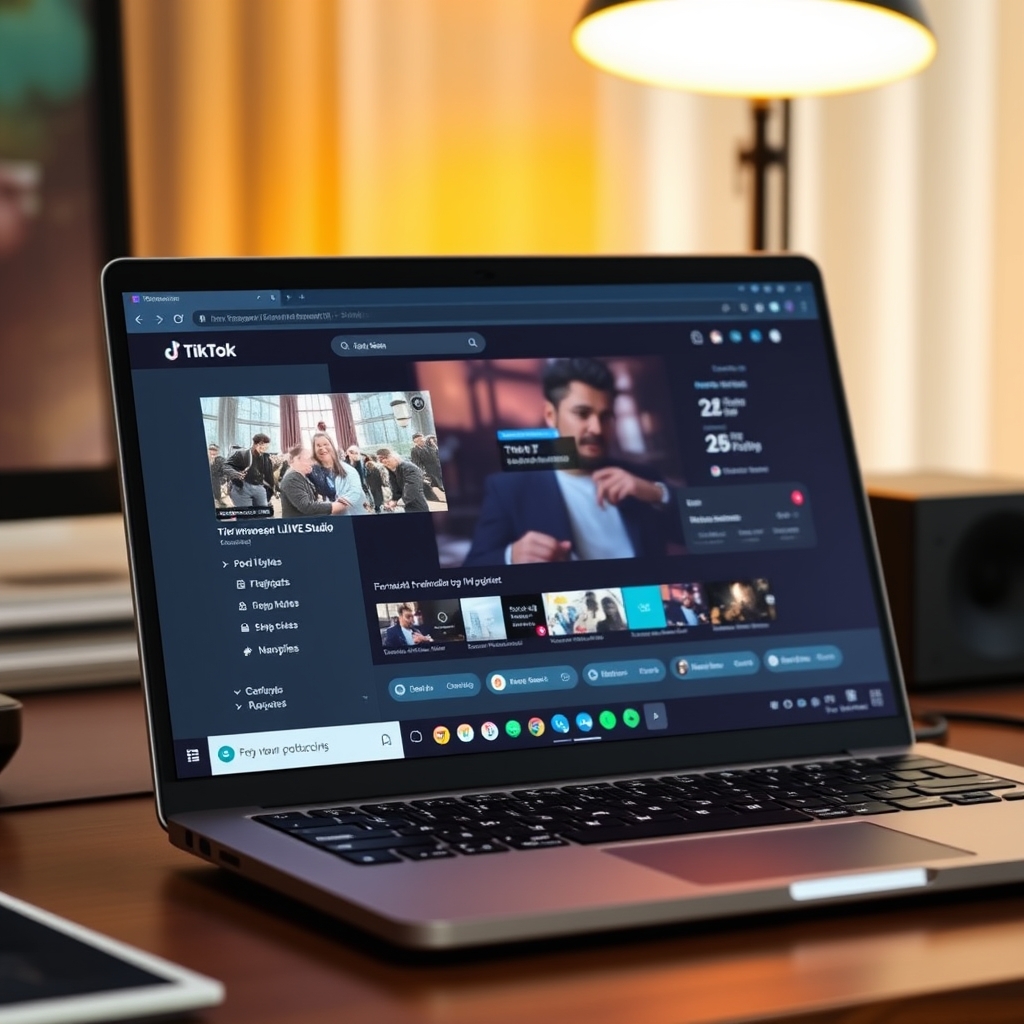
TikTok LIVE Studio is an official desktop application built by TikTok for Windows and Mac computers. It gives streamers a dedicated way to broadcast live streams directly from their computer without relying on a phone. The application connects to your TikTok account immediately, meaning you skip the setup steps required by third-party broadcasting software.
Unlike tools such as OBS Studio, which require you to obtain and configure a stream key, TikTok LIVE Studio handles authentication automatically. Once you log in with your TikTok account credentials, the app recognizes you and is ready to stream. This streamlined approach removes a significant barrier for streamers who find RTMP and stream key configuration confusing or time-consuming.
During your broadcast, TikTok LIVE Studio lets you manage scenes, adjust bitrate on the fly, and switch between multiple audio and video sources. You can prepare your setup before you go live—selecting which camera, microphone, or screen area to capture—and then make real-time changes while streaming. The output always appears on your TikTok profile in portrait orientation (1080x1920), maintaining the vertical format viewers expect on TikTok, even though you are broadcasting from a horizontal desktop screen.
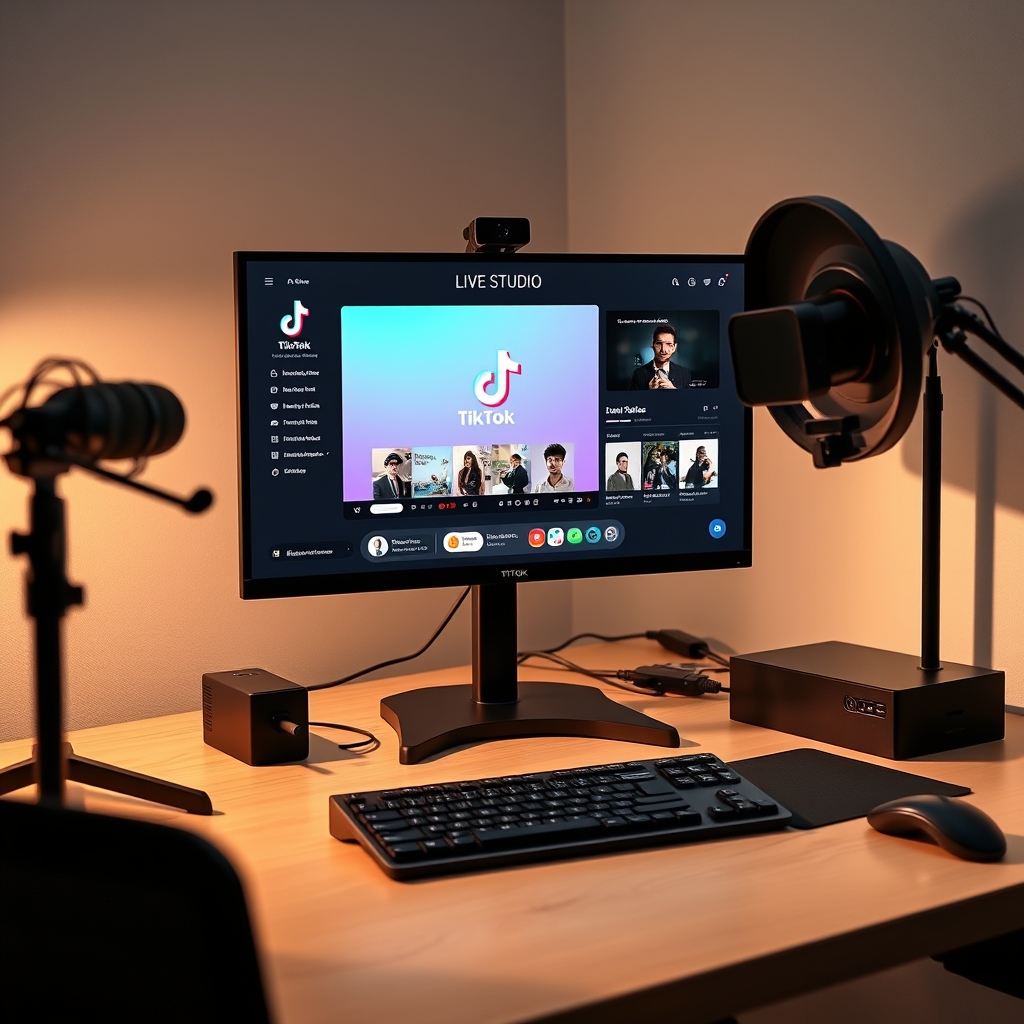
This approach is especially useful if you stream regularly from one location, such as a gaming desk or streaming studio. You retain professional control over your stream quality and composition while avoiding the learning curve of standalone encoder software. Setup requirements are minimal compared to RTMP-based workflows, making it a practical choice for both new and experienced streamers.
What are the system requirements for TikTok LIVE Studio on PC?
TikTok LIVE Studio runs on Windows 10 or newer, with support for both Intel and AMD processors. If you are on Mac, you need a recent operating system version to ensure compatibility and stable performance. Before installing, check that your computer meets these baseline specifications to avoid crashes or streaming interruptions.
Random access memory is a critical factor for smooth streaming. The minimum requirement is 4 GB of RAM, though 8 GB or more is strongly recommended if you plan to run other applications simultaneously, such as chat management tools or browser windows for monitoring comments during your broadcast.
Your internet connection must be reliable and capable. A stable upload speed of at least 3–5 Mbps is necessary for consistent streaming quality. If your upload speed falls below this range, you may experience lag, buffering, or dropped frames that viewers will notice. Test your connection speed before going live, and if possible, use a wired ethernet connection rather than WiFi to minimize fluctuations.
Hardware input devices are essential. You need a functional webcam or video capture device to provide video input, and a microphone to deliver clear audio. Many built-in laptop webcams and microphones are sufficient to start, but investing in external peripherals can improve broadcast quality significantly over time.
Finally, you must have creator account status on TikTok. Eligibility varies by region and account age, so TikTok may require you to meet minimum follower counts or account tenure before granting access to LIVE Studio. Check your account settings within the TikTok app to confirm whether you have been granted broadcasting permissions. For detailed setup steps once you meet these requirements, see TikTok LIVE Studio: Access, Requirements & Setup.
Is TikTok LIVE Studio free to download and use?
TikTok LIVE Studio is completely free to download and use. You can grab it directly from the official TikTok website or through your device's app store without paying anything upfront. There are no subscription fees, hidden charges, or premium tiers that lock away streaming features. Everything you need to go live on TikTok is included in the base package at no cost.
The only money that moves through TikTok LIVE Studio involves viewers choosing to send gifts during your stream. When a viewer purchases and sends a gift, those coins are converted into diamonds that appear in your creator account. This is optional on both sides: viewers decide whether they want to send gifts, and you have no obligation to ask for them or pressure anyone into sending anything. Many streamers go live and never receive a single gift, and that is perfectly normal.
Since TikTok LIVE Studio is free, the barrier to starting your first live stream is just having a compatible PC and meeting the basic system requirements. You do not need to invest money upfront to test out streaming, learn the interface, or build your first audience. This makes it accessible to anyone who wants to experiment with live broadcasting on TikTok without financial risk.
Keep in mind that while the app itself is free, the quality of your stream depends on your internet connection and PC hardware. A stable upload speed and adequate processing power will give viewers a better experience, but upgrading your setup is a separate decision from downloading the app. Once you have TikTok LIVE Studio running on a PC that meets the technical requirements, you are ready to go live immediately.
If you want to explore more advanced options or integrate interactive elements into your streams, you can layer in additional tools and software later. For now, getting started with TikTok LIVE Studio costs nothing, which means you can start broadcasting and learning how live streaming works on the platform without any financial commitment.
How do you start a TikTok Live using the desktop app?
Starting a TikTok Live on your PC using TikTok LIVE Studio begins with downloading and installing the application on your computer. Once installed, launch the app and log in with your TikTok creator account. Make sure your account meets any eligibility requirements for going live; if you do not yet have access, TikGami can help you understand your options for going live on TikTok without meeting follower thresholds.
After logging in, you will need to set up your scene, which is the visual layout viewers will see during your broadcast. This involves adding at least one video source: either your webcam for a face-to-camera stream or screen capture if you are sharing your desktop. You can layer multiple sources, add graphics, text overlays, or branding elements to customize the appearance. Configure your audio by selecting your microphone and testing the input level to ensure viewers can hear you clearly.
Stream settings come next. TikTok LIVE Studio lets you adjust your bitrate and resolution based on your upload speed and the quality you want to deliver. A higher bitrate produces clearer video but requires a faster internet connection; start conservatively if you are unsure about your connection stability. Once your scene and settings are configured, review them one more time before going live.
Click the Go Live button to start your broadcast. Your stream will appear on your TikTok profile within seconds, and viewers who follow you or discover you will receive a notification and can join your live room. You remain in full control throughout—pause if needed, adjust settings on the fly, or end the stream whenever you choose. The entire setup process typically takes just a few minutes once you are familiar with the interface.
Can you use OBS instead of TikTok LIVE Studio, and how do you get a stream key?
Yes, you can use OBS Studio or other RTMP-compatible broadcasting software to go live on TikTok. Instead of using TikTok LIVE Studio, you configure your third-party software with a stream key and RTMP server address provided by TikTok. This approach gives you more control over your scene layout, transitions, and sources, making it popular with streamers who already work with OBS for other platforms.
The critical step is obtaining a stream key from TikTok. Stream key access is not available to every account. TikTok gates this feature, meaning you must request access and wait for approval from the platform. Not all creators are granted a stream key, and the approval process can take time. Once you have submitted your request, check your TikTok Creator Center or account settings for confirmation.
When TikTok approves your request and issues a stream key, treat it as a secret credential. Never share your stream key publicly, paste it in chat, or post it on social media. Anyone with your stream key can broadcast to your live stream without permission. Store it securely and only enter it into the software you control on your own computer.
After you receive your stream key, open OBS Studio and navigate to Settings, then Stream. Select RTMP as your service or enter the custom RTMP server URL that TikTok provides alongside your key. Paste your stream key into the designated field. Configure your bitrate, resolution (1080x1920 is TikTok's portrait format), and Scene setup, then you can begin streaming to your TikTok LIVE audience the same way you would with TikTok LIVE Studio.
If you plan to run interactive games during your broadcast, you can layer game output on top of your OBS scenes using a virtual camera, so viewers see both your overlay and the game without them needing to install anything separately. This setup is common for streamers combining engagement tools with a professional broadcast workflow.
Turn those gifts into a game on screen
TikGami turns comments, likes and gifts into games your viewers control live. Free for macOS and Windows.
Get TikGami freeQuick answers
Can I use TikTok LIVE Studio on Windows 7?
No, TikTok LIVE Studio requires Windows 10 or newer. Windows 7 is no longer supported. If you are using an older version of Windows, you will need to upgrade your operating system or use OBS Studio with an RTMP stream key instead.
Is TikTok LIVE Studio available for Android?
No, TikTok LIVE Studio is designed for desktop computers only, available on Windows and Mac. On Android devices and tablets, you broadcast using the TikTok mobile app directly. For mobile streaming with advanced features, use the phone app's built-in live stream tools.
What is the difference between TikTok LIVE Studio and OBS?
TikTok LIVE Studio is purpose-built for TikTok and connects directly to your account with no RTMP setup needed. OBS is a general-purpose streaming software that works with many platforms when you provide an RTMP stream key and server address. TikTok LIVE Studio is simpler to configure; OBS offers more advanced scene and source control.
How much bitrate should I use in TikTok LIVE Studio?
Bitrate depends on your upload speed and desired quality. A safe starting point is 4–6 Mbps for 1080x1920 portrait streaming. If your connection is unstable or upload speed is lower than 5 Mbps, reduce bitrate to 2–3 Mbps to prevent buffering and dropped frames.
What happens if I don't meet the system requirements?
If your PC does not meet the minimum requirements, TikTok LIVE Studio may not install, run slowly, drop frames frequently, or crash during a stream. Upgrading RAM, using a wired internet connection, or reducing bitrate can improve performance. If your computer cannot be upgraded, OBS with a lower bitrate might work on older hardware.