How to Put a Game on TikTok Live Studio: Step-by-Step Guide
Games appear on TikTok Live Studio through a virtual camera source that mirrors your desktop or a dedicated game window. The easiest method is using TikGami, which reads your live room and renders interactive games as a camera feed without requiring viewers to install anything. Once selected in Live Studio or OBS, the game displays to your audience while they interact through comments, likes, and gifts.
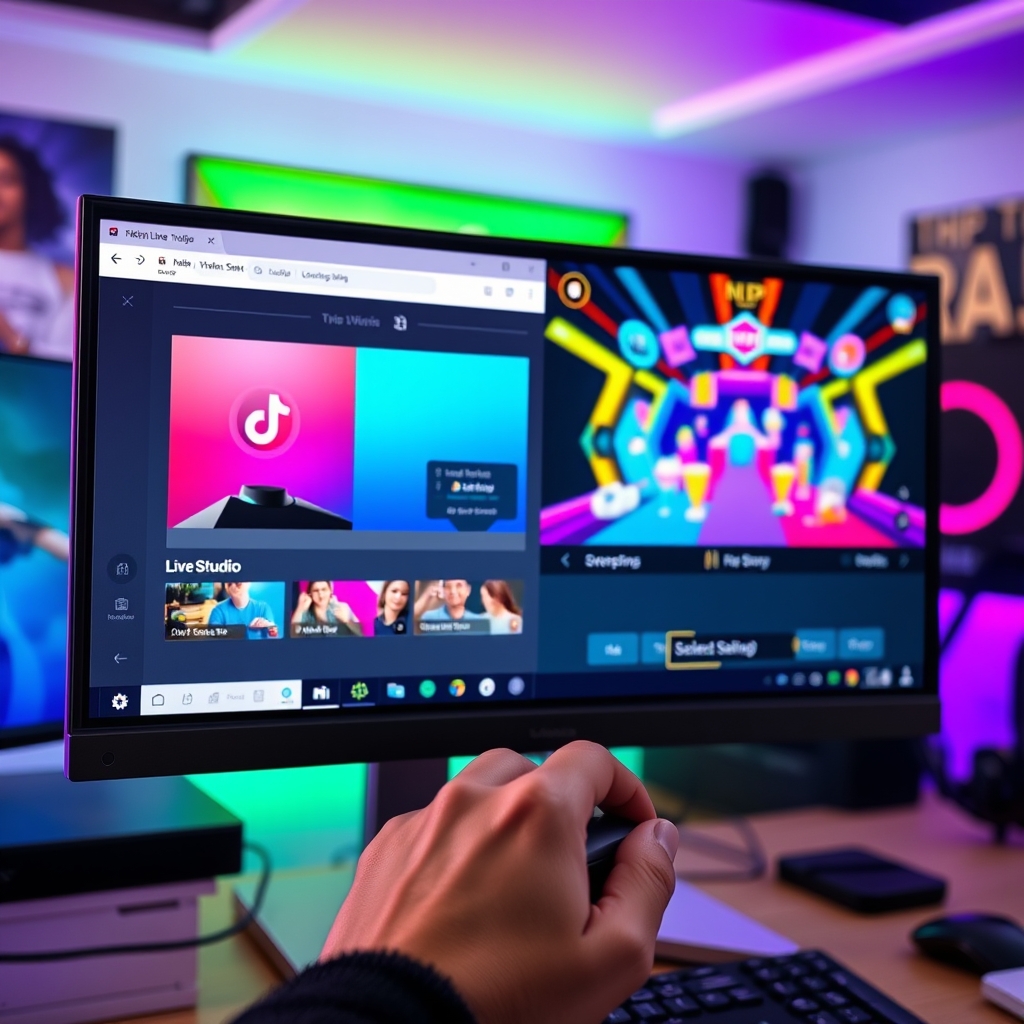
Getting a game onto your TikTok live stream is not as simple as uploading a file. Your stream needs a camera source—either the native camera picker in TikTok Live Studio, or an external tool like OBS—that points to your game window or desktop.
What Is a Virtual Camera and Why You Need One
TikTok Live Studio accepts camera sources only. When you open the app to start a live stream, it asks you to select a camera: your computer's built-in webcam, an external USB camera you plugged in, or a virtual camera. A virtual camera is software that pretends to be a physical camera but outputs your desktop, a specific window, or a rendered application instead of video from an actual lens. To the operating system and to TikTok, it looks like a real camera. To your audience, it displays whatever the virtual camera software is set to capture.
The reason you need a virtual camera for games is straightforward. TikTok Live Studio does not have a built-in game selector or a way to choose "render this app's output directly." The app only recognizes camera inputs. If you want to show a game running on your computer to your viewers, you must route that game through a virtual camera so TikTok can see it as a camera source and display it on stream.
Popular virtual camera tools include OBS (Open Broadcaster Software), which is free and works on Windows and Mac, and various standalone virtual camera applications. OBS is particularly useful because it lets you configure exactly what appears in the camera output: your full desktop, a single game window, or even a composite view with overlays. Once set up, you select the virtual camera in TikTok Live Studio the same way you would select a physical camera.
Without a virtual camera or OBS integration, you have no way to pipe game content into TikTok Live Studio. This is why virtual cameras are essential infrastructure for anyone who wants to broadcast games, interactive applications, or desktop content on TikTok Live. If you are planning to stream gameplay or use a tool like TikGami to run interactive games on your broadcast, setting up a virtual camera is a prerequisite step that happens before you even open TikTok Live Studio.
The workflow is simple: configure your virtual camera to output the game or application, select that virtual camera in TikTok Live Studio, and go live. Your viewers then see the game on their screen while they participate by sending comments, gifts, and engagement signals that you can react to in real time.
How to Set Up TikTok Live Studio for Games on Windows or Mac
TikTok Live Studio is available as a desktop application for macOS and Windows only. You cannot broadcast games directly from a mobile app, so downloading the desktop version is your first requirement. Visit tiktok.com/download and select the appropriate installer for your operating system, then complete the installation process on your computer.
Once installed, open TikTok Live Studio and log in with your TikTok account credentials. Navigate to your streaming settings and locate the camera picker dropdown. This is where you specify which video source will feed into your broadcast. The app will display any available cameras and virtual camera sources connected to your system.
If you have already set up a virtual camera through OBS or another streaming tool, select it from the dropdown menu. If you have not yet configured a virtual camera, you will need to do so before proceeding. Many streamers use OBS as their virtual camera source because it offers reliable compatibility and straightforward integration with TikTok Live Studio.
After selecting your camera source, that feed becomes your broadcast source the moment you go live. The game you are running through your virtual camera will then appear on screen during your TikTok LIVE session. Test your setup by starting a short broadcast and confirming that the correct video feed appears before going live with a full stream.
Keep in mind that the quality and performance of your game broadcast depend on your internet connection speed and your computer's processing power. A stable connection and adequate system resources help ensure smooth gameplay for your viewers without lag or stuttering.
Can You Stream Games on TikTok Live from Your Phone
TikTok Live on mobile devices does not support virtual cameras, external camera sources, or OBS integration. This is a hard limitation on iOS and Android. If you want to broadcast a game to your TikTok Live audience, you cannot do it directly from your phone the way you would from a desktop setup. The mobile app only accepts whatever your phone's camera captures in real time.
You have two workarounds, neither of which is seamless. The first is to mirror or cast your phone screen to another device—usually a computer—and then use that computer to broadcast to TikTok Live. This requires a second machine, screen mirroring software, and a way to route the display into TikTok Live Studio. The setup is indirect and adds extra steps that can introduce lag or connection issues. Most streamers find this approach more trouble than it is worth for a casual session.
A cleaner alternative is to record your game locally on your phone while you broadcast yourself talking to your audience via TikTok Live on the same device. After the live session ends, you can upload a separate video clip of the gameplay to your profile or share it in the chat. This separates the live interaction (which is what your audience values) from the polished game footage (which you edit and publish later). Many mobile gamers use this hybrid method because it avoids the complexity of real-time mirroring.
If you want a true interactive game experience streamed live to your TikTok audience, switching to a desktop is the practical path. A computer running Windows or macOS can use TikTok Live Studio or OBS integration to display a virtual camera source, which is where game content lives. This is why most TikTok LIVE game streamers broadcast from a desk setup rather than from a phone.
The constraint exists because mobile operating systems do not expose the same camera input options that desktop platforms offer. TikTok's mobile app was designed to broadcast the built-in camera and microphone, not to accept external or virtual sources. It is a technical boundary, not a setting you can change.
How to Use TikGami to Play Interactive Games on Your TikTok Live
TikGami is a desktop app for macOS and Windows that bridges your TikTok live room and interactive gameplay. The app reads viewer comments, likes, and gifts in real time, then converts them into game actions rendered as a virtual camera source. This means your audience sees the game playing on screen while they control it from the chat—no downloads, no sign-ups, no friction.
To get started, download TikGami from the official website and install it on your computer. Launch the app, connect your TikTok account, and authenticate so TikGami can access your live room. Browse the Game store inside the app, pick a game that fits your stream style, and launch it. The game will render as a camera feed inside TikGami's control panel.
Next, open TikTok Live Studio or OBS on the same machine. In your camera source list, select the TikGami virtual camera. Frame it in your layout, hit go live, and you are ready. Viewers in your live room will see the game on their screens and can play immediately by commenting, tapping the like button, or sending gifts—whatever the game requires.
Game logic runs on TikGami's servers, not in a browser tab, so the game state is protected. Viewers cannot tamper with the outcome or cheat by inspecting code. What they see is what they control, and that control flows through their real actions in your live room. This server-side architecture also means you can close the game window, restart it, or switch games mid-stream without breaking the connection to your audience.
Every game in the store is included in TikGami's paid plans, and new games are added regularly without requiring you to reinstall the app.
Why Your Game Is Not Showing Up in TikTok Live Studio
When you have set up a virtual camera and launched your game, but the output still does not appear in your TikTok Live stream, the issue usually falls into one of a few predictable categories. Troubleshooting these common blockers takes only a few minutes and will get you back on air.
The most frequent culprit is that the virtual camera source is not selected in TikTok Live Studio. Even if the camera is running on your computer, TikTok defaults to your built-in webcam. Open the camera picker dropdown in the Live Studio interface and scroll through the available sources. Look for the name of your virtual camera software (it may appear as "OBS Virtual Camera," "TikGami Camera," or another label depending on which tool you are using). Select it and confirm the game display appears in the preview window before you go live.
If you are attempting to stream games from a mobile phone, TikTok Live Studio on iOS and Android does not accept external camera sources. Mobile TikTok LIVE is designed for direct phone camera output only. To play interactive games on your TikTok Live stream, you must use a desktop computer running either Windows or macOS and broadcast through the TikTok Live Studio desktop application or OBS with proper camera source integration.
Another common reason is that the virtual camera software itself is not running or not actively broadcasting. Before you start your TikTok Live, verify that:
- The application (OBS, TikGami, or your chosen tool) is open and fully loaded
- The virtual camera feature is explicitly enabled within that application
- If the software shows a recording or broadcast status, confirm it is set to "running" or "active"
- You have not accidentally stopped or paused the camera feed
Security software can also block virtual cameras without a clear error message. Antivirus programs, privacy filters, and screen capture restrictions sometimes treat virtual camera drivers as suspicious. Check your antivirus settings and look for any notifications about blocked applications. Temporarily disable real-time screen protection for TikTok or add the virtual camera software to your allowlist. Some users report success by running TikTok Live Studio as Administrator on Windows, which can bypass certain permission restrictions.
If you are using TikGami to generate games from comments and gifts, ensure the app is running on your desktop machine, that the virtual camera is selected in TikTok Live Studio, and that the game is actively rendering. TikGami's integration with OBS and direct camera source options makes it straightforward to connect, but the same setup principles apply: the software must be running, the camera must be enabled, and TikTok must be pointed at the correct input. Visit the TikGami Blog for additional setup walkthroughs if you get stuck.
Turn those gifts into a game on screen
TikGami turns comments, likes and gifts into games your viewers control live. Free for macOS and Windows.
Get TikGami freeQuick answers
Do viewers need to download an app to play the game on my TikTok live?
No. If you use TikGami, viewers play by commenting, tapping likes, or sending gifts directly in your TikTok live room. They do not install anything. If you are streaming a traditional PC game like Roblox or Minecraft, viewers are only watching; they cannot play unless they launch the game themselves.
Can I stream a game on TikTok live from my phone?
The TikTok Live app on mobile phones does not support virtual cameras or external game feeds. You must use TikTok Live Studio on a desktop computer. If you want to stream phone games, use a desktop tool to mirror your phone screen to your computer first.
What is the difference between OBS and TikGami?
OBS is a free streaming software that mirrors your desktop or a single window; it requires you to run your own game and manage the broadcast. TikGami is a desktop app that turns comments, likes, and gifts into interactive games without requiring viewers to install anything. Choose OBS for full control over what shows; choose TikGami for audience-driven games.
Why is my virtual camera not showing up in TikTok Live Studio?
The virtual camera software must be running before you open TikTok Live Studio. Launch OBS, TikGami, or your chosen tool first, then open TikTok Live Studio and check the camera dropdown. If still not visible, restart both apps. Some security software blocks virtual cameras; check your antivirus settings.
Do I need a powerful computer to stream a game on TikTok live?
Streaming a game requires more CPU and bandwidth than streaming a camera feed alone. A mid-range computer from the last few years should handle streaming at 720p or 1080p at 30 fps. Close other apps to free up resources. If your stream is choppy, lower the resolution or frame rate in your streaming tool.