TikGami vs TikFinity: Which TikTok LIVE Tool Fits Your Stream
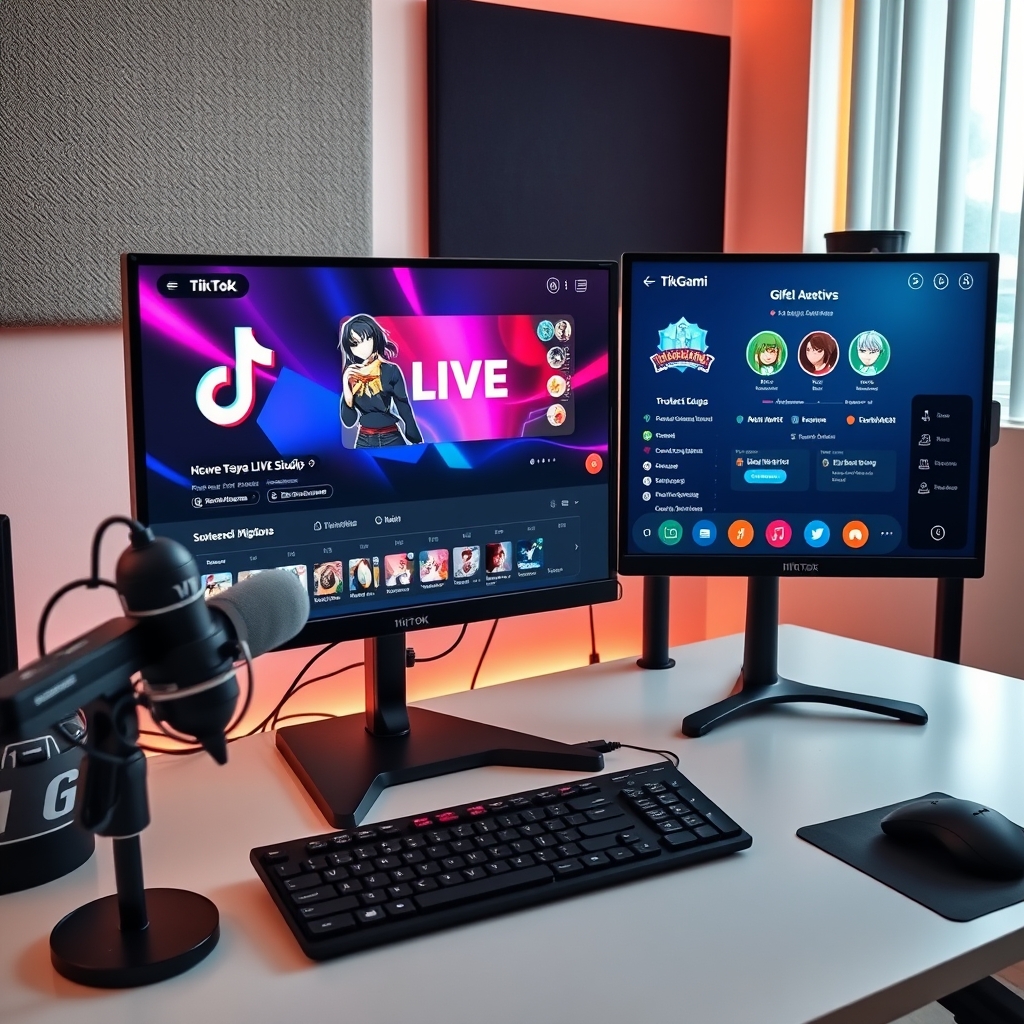
TikGami and TikFinity serve different purposes on TikTok LIVE: TikGami converts viewer comments, likes and gifts into playable games on screen, while TikFinity triggers alerts, overlays and text-to-speech reactions when gifts land. TikGami renders a game as a camera source for OBS or TikTok Studio; TikFinity runs as browser widgets and action layers. A streamer can use both tools together since they handle separate workflows.
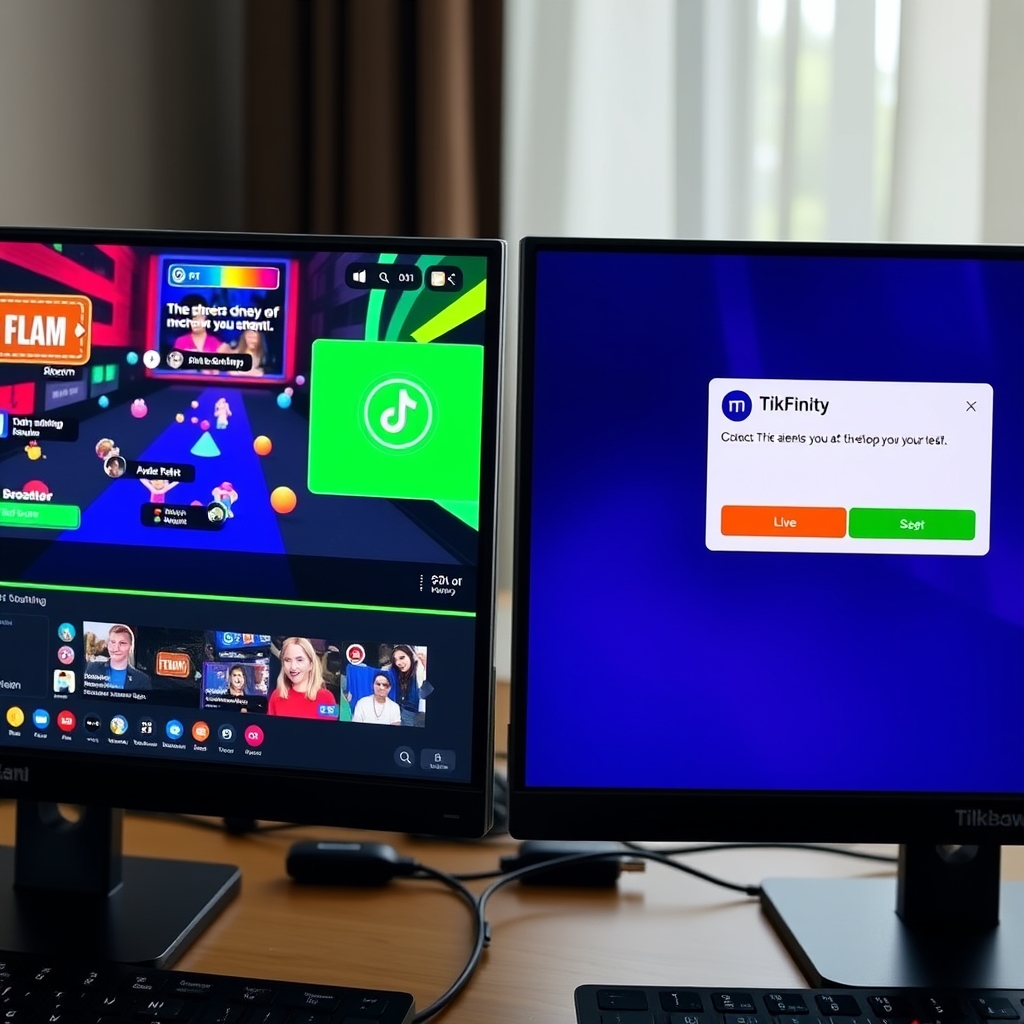
TikGami and TikFinity both sit in the TikTok LIVE companion space, but they answer different questions. If you are deciding between them, the question is not which is better—it is which job you need done first.
What is the core difference between TikGami and TikFinity?
TikGami and TikFinity serve fundamentally different purposes on your stream, even though both integrate with TikTok LIVE. The distinction comes down to what layer of your broadcast they occupy and what they do with viewer interaction.
TikGami is a game engine. It transforms viewer comments, likes, and gifts into real-time games that render directly as a camera source in your broadcast. When someone sends a gift or types a comment, that action feeds into active game logic running on TikGami's servers. The game plays out on screen as a standalone layer—think quiz shows, prediction boards, or spin wheels where the audience outcome drives the gameplay. Viewers see the game mechanic unfold live, and the experience is self-contained within the game itself.
TikFinity is an alert and reaction suite. It monitors when viewers send gifts, then fires outbound reactions: overlay widgets appear, sounds trigger, text-to-speech messages play, or custom actions execute. TikFinity enhances the moment a gift lands but does not create a playable game. It is a reaction layer that sits on top of your existing stream, making gift-sending more visually and audibly rewarding.
In practical terms, TikGami replaces your game layer—it becomes the interactive game your audience plays. TikFinity enhances your gift reaction layer—it makes gift events feel more immediate and immersive. A streamer using TikGami might run a coin-guessing game where comments determine the outcome. A streamer using TikFinity might trigger a sound effect and an on-screen pop-up every time someone sends a rose. They solve different streaming needs, which is why many streamers use both tools together on the same broadcast.
How does TikGami's game delivery work compared to TikFinity?
TikGami and TikFinity take fundamentally different approaches to how they reach your viewers. TikGami runs as a desktop application on macOS or Windows, generating a complete game experience that outputs through a virtual camera. You select that camera source inside TikTok LIVE Studio or OBS, and the game appears as part of your broadcast. This means the game is baked into your stream as a native layer, not as an overlay floating on top.
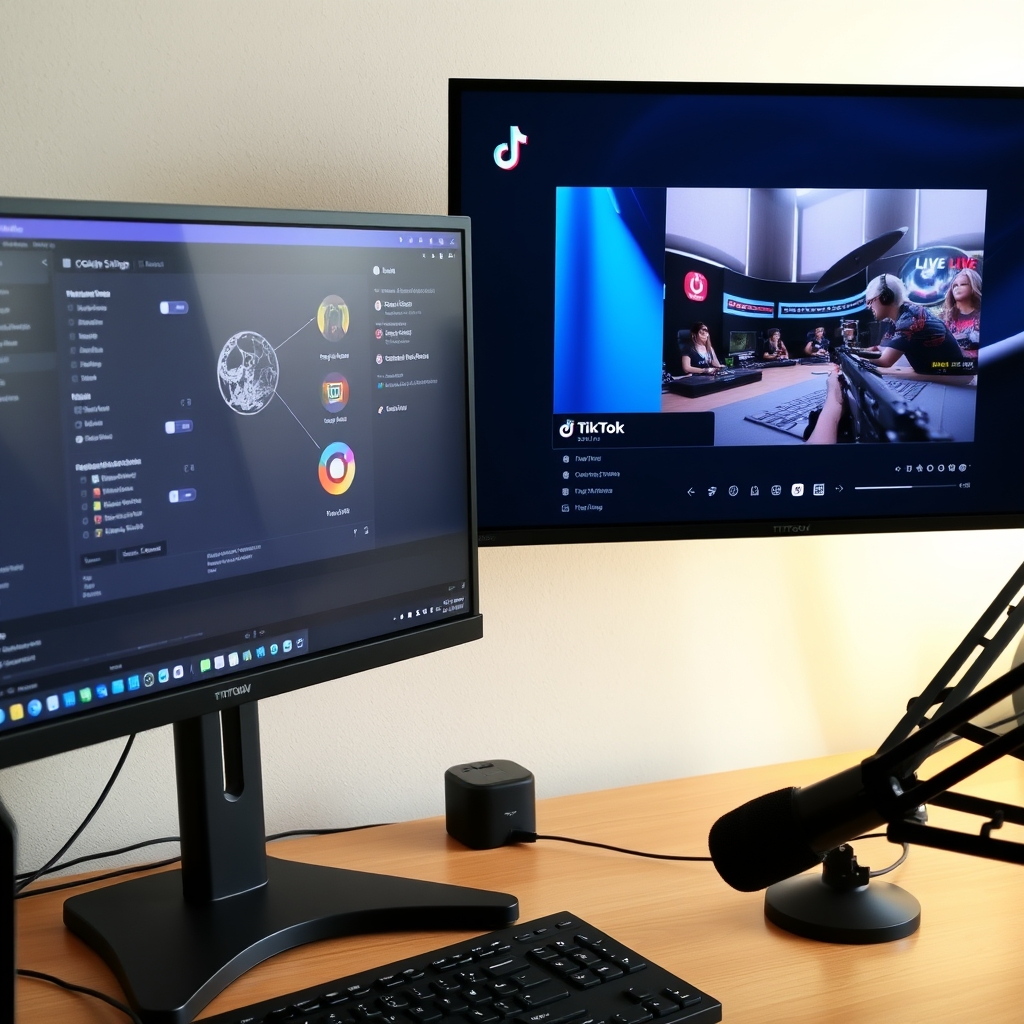
TikFinity operates as a browser-based system, deploying widgets and overlays that sit on top of your existing stream or OBS scene. These elements are browser overlays rather than a dedicated camera feed, so they integrate differently into your broadcasting setup. If you are already comfortable managing multiple browser windows and overlays, TikFinity's approach feels familiar. If you prefer a cleaner technical stack where everything feeds through one unified source, TikGami's virtual camera model offers that.
A critical difference lies in how each tool handles game integrity. TikGami runs game logic on the server side of the application, not in the browser. This means viewer input—comments, likes, and gift data—cannot be tampered with from the browser or client side. The game state stays secure on TikGami's servers, protecting the fairness of your on-stream games. TikFinity, by contrast, uses event-driven actions tied to Webhooks. When TikFinity detects a viewer gift, follow, or comment through the Webhook, it triggers a corresponding action or overlay effect. This is a reactive system designed to fire visual or audio responses the moment the event lands.
In short: TikGami asks you to add a new camera source and manage a desktop application; TikFinity asks you to layer browser elements on top of what you already have. Choose TikGami if you want complete games with server-side security; choose TikFinity if you want lightweight, event-triggered reactions that complement an existing alert system.
Which tool requires more setup and technical skill?
Neither TikGami nor TikFinity demands coding knowledge or advanced technical expertise. Both are built for streamers who want to click through setup rather than write scripts. The difference lies in the shape of that setup: one-time versus ongoing.
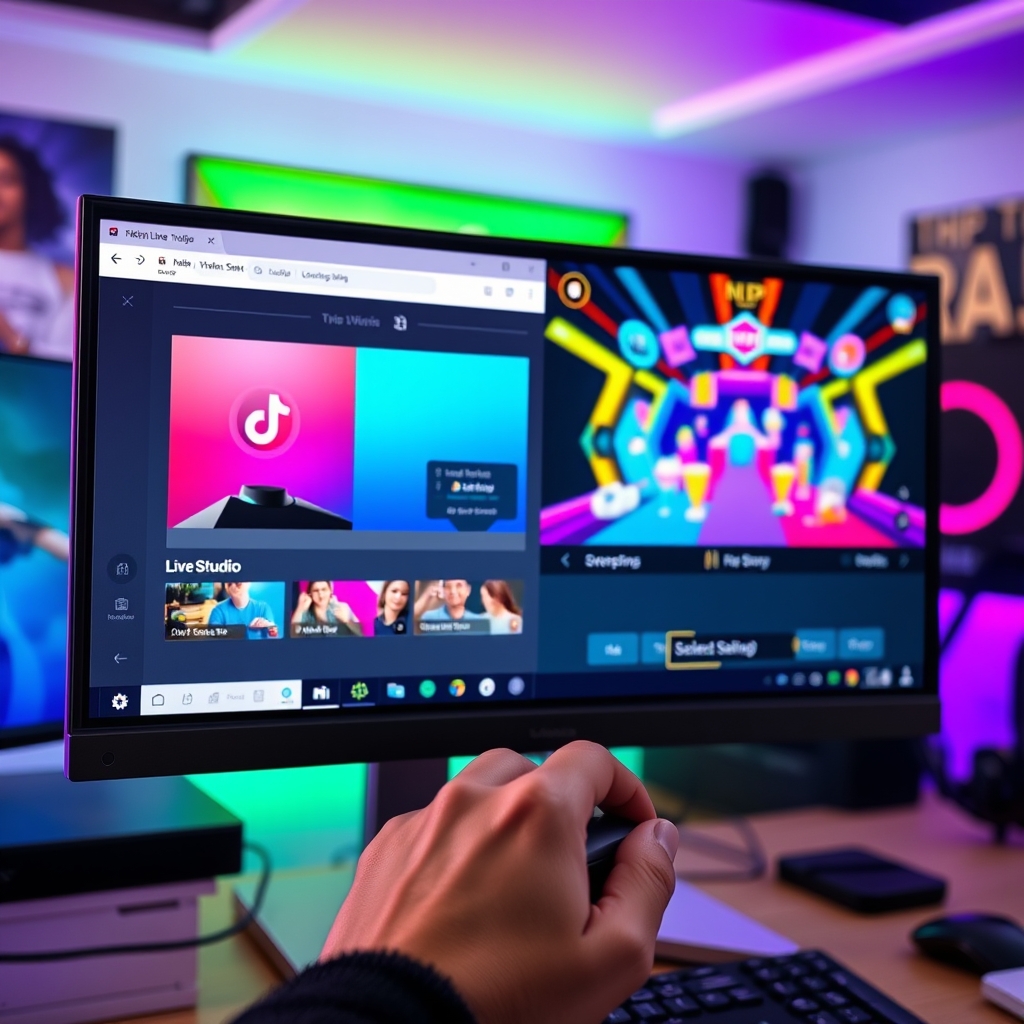
TikGami's setup follows a clear launch sequence. You install the desktop app on macOS or Windows, authorize it to read your TikTok LIVE room, pick a game from the Game store, and then add the virtual camera source to either OBS or TikTok LIVE Studio. Once the camera is live in your broadcast, the game runs automatically—no further configuration needed during the stream. If you want to switch games mid-stream, you do so in the app, and the new game appears in your camera feed immediately. This is largely a per-stream ritual: app open, game selected, camera active.
TikFinity takes a different path. You grant it browser-based access to your TikTok account and configure webhooks so it knows when gifts, comments, or likes arrive in your room. Then you place overlay widgets into your OBS or Studio scene and set up alert rules—which sounds trigger when a specific gift lands, which text-to-speech message plays, what sound effect fires. This setup is more distributed across your streaming software and requires you to visit Finity's dashboard to tweak rules, add or remove alerts, or change how the overlays behave. The customization doesn't end after launch; streamers often refine alert behavior between streams or even during broadcasts.
In practical terms: TikGami feels like pressing start, while TikFinity feels like continuously adjusting knobs. Neither approach is inherently harder—it depends on your workflow. If you prefer a game to simply exist and run on screen, TikGami is faster to activate. If you want granular control over how every gift type triggers a reaction, TikFinity's alert system gives you that flexibility. Both are point-and-click after the initial connection is made.
Can you use TikGami and TikFinity together on the same stream?
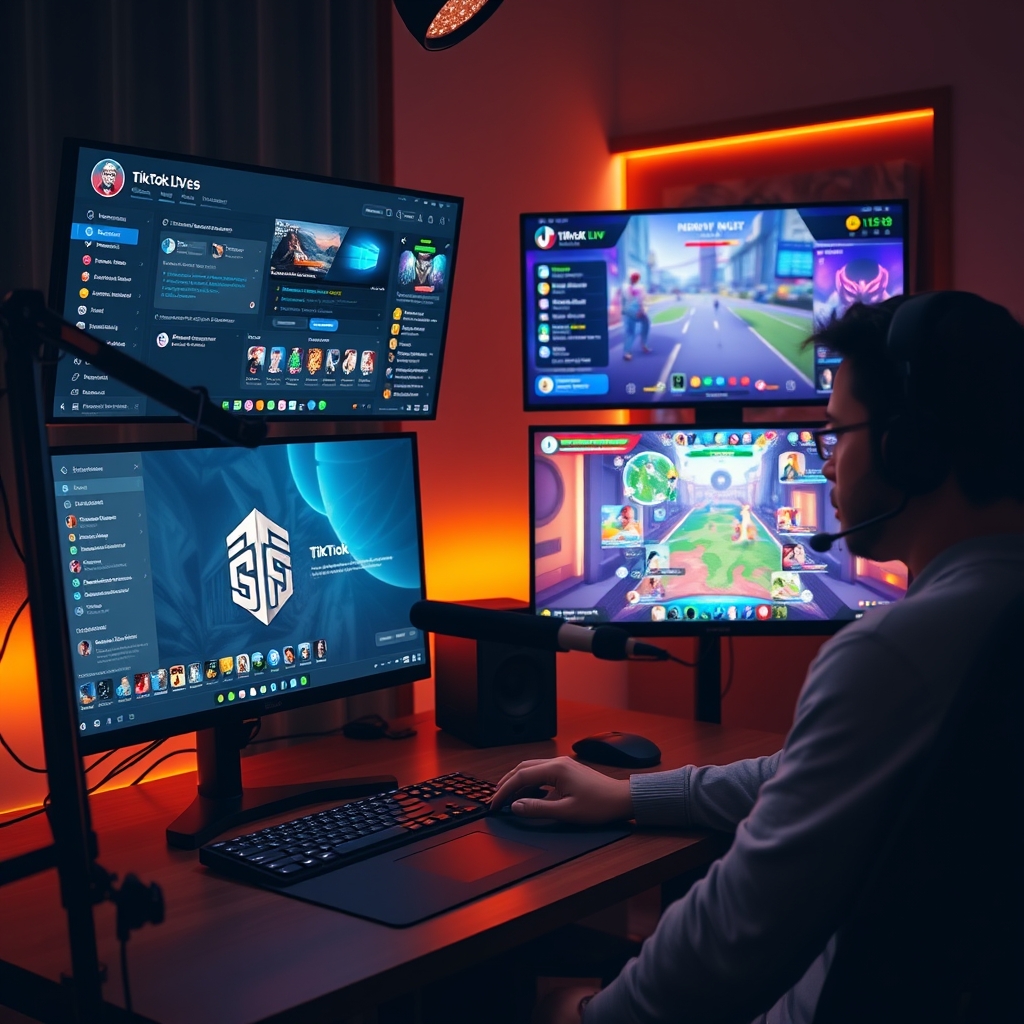
Yes. TikGami and TikFinity serve different purposes in your broadcast, and they work alongside each other without conflict. TikGami handles the game layer—turning viewer comments, likes, and gifts into interactive game mechanics on screen. TikFinity handles the alert and reaction layer, firing sounds, text-to-speech responses, and overlay popups when viewers send gifts or perform other actions. Because they operate in separate visual and functional spaces, both can run simultaneously on the same LIVE room.
The technical reason they do not interfere is straightforward. TikGami outputs a camera source—a virtual camera feed that you select in TikTok LIVE Studio or OBS the same way you would pick your phone camera. It renders the game interface and game state in that window. TikFinity outputs overlays and audio, which sit on top of or beside your main broadcast without replacing any video input. They are reading the same LIVE room data, but they are not competing for the same output slot.
A typical two-tool setup looks like this: TikGami renders an interactive game (word guessing, trivia, or a gift-based mini-game) in the center or lower third of your screen. At the same time, TikFinity displays a gift alert popup in the corner with a sound effect and maybe a text-to-speech callout. Viewers see both happening—the structured game and the reactive alert—without either tool stepping on the other.
How to set this up
- Launch TikGami on your computer and select your game from the Game store. Start the virtual camera.
- Add the TikGami virtual camera as a source in OBS or pick it in TikTok LIVE Studio.
- In a separate window or browser tab, set up TikFinity with your room URL and configure your alerts and sounds.
- Start your LIVE, and both tools will monitor your room independently.
The main consideration is CPU and attention. Running both tools at once uses more processing power, so make sure your computer can handle it. You also need to design your game and alerts so they do not distract from each other—for example, if your game shows a question with a countdown timer, placing a loud alert popup at the exact moment might confuse viewers. But from a technical standpoint, they coexist cleanly. Many streamers use this combination to build a richer, more responsive LIVE experience.
What should you consider when choosing between them?
The choice between TikGami and TikFinity depends on what you want your stream to accomplish. Both tools enhance TikTok LIVE, but they serve different purposes. Start by identifying your streaming priority: do you want to build sustained audience participation through games, or do you want immediate visual and audio reactions to viewer generosity?
Choose TikGami if your goal is audience engagement through interactive games that respond to viewer actions in real time. The platform turns comments, likes and gifts into playable game mechanics that keep viewers invested and coming back. Games run server-side, meaning they are tamper-proof and require zero additional installation from your audience. If building a repeatable, interactive experience that scales with your viewer base matters to you, TikGami aligns with that strategy.
Choose TikFinity if your priority is reacting to gifts with visual and audio feedback, like sounds, overlays and text-to-speech messages. TikFinity excels at the immediate moment: a viewer sends a gift, and your stream lights up with a custom reaction. This tool is ideal for streamers who want to acknowledge and celebrate each donation in real time without layering complex game logic.
If budget or time is tight, start with one tool aligned to your streaming priority, then add the other later. Many streamers find that pairing both tools creates a complete experience: TikGami keeps the audience playing between gift moments, while TikFinity celebrates gifts as they arrive. Neither tool requires the other, so you can build your setup incrementally.
Check the free tier or trial of each before committing. Both offer ways to test before paid plans, so you can stream with each tool and see which feels natural to your workflow. Test with a small group first, observe which interactions feel most engaging to your audience, and let that feedback guide your decision. For more details on how each tool works in practice, visit the full TikGami vs TikFinity comparison.
Turn those gifts into a game on screen
TikGami turns comments, likes and gifts into games your viewers control live. Free for macOS and Windows.
Get TikGami freeQuick answers
Does TikFinity include games like TikGami does?
No. TikFinity is built around alerts, overlays, sounds and actions that fire when events happen on LIVE. TikGami is built around complete games that viewers play by commenting, liking or sending gifts. They solve different parts of the streamer workflow.
Can I use TikGami without OBS?
Yes. TikGami works with TikTok LIVE Studio directly. You open TikGami, start the game, then add the virtual camera as a source in Studio's scene builder. No OBS needed, though OBS integration is also supported if you prefer that setup.
Is TikFinity a mobile app or desktop app?
TikFinity is browser-based and works on desktop. TikGami is a desktop app for macOS and Windows only; there is no mobile app for either tool. Both require a computer to run or configure.
Which tool is cheaper?
Both offer free tiers and paid monthly subscriptions. Pricing and plan details change regularly, so visit tikgami.com and TikFinity's pricing page to compare current rates. Neither tool is free long-term at full feature depth, but both let you trial before buying.
Can I run both TikGami and TikFinity in OBS at the same time?
Yes. Add the TikGami virtual camera as one source and overlay TikFinity browser widgets as browser sources in the same OBS scene. They operate independently and will not interfere with each other.