How to Add a Game to TikTok Live with OBS
Adding a game to TikTok Live with OBS requires connecting your stream key, setting up a game scene, and configuring output settings to match TikTok's requirements. OBS acts as your broadcasting software, capturing your gameplay and sending it through TikTok's streaming infrastructure. Once configured, your audience sees the game on their screens as you play and interact with comments.
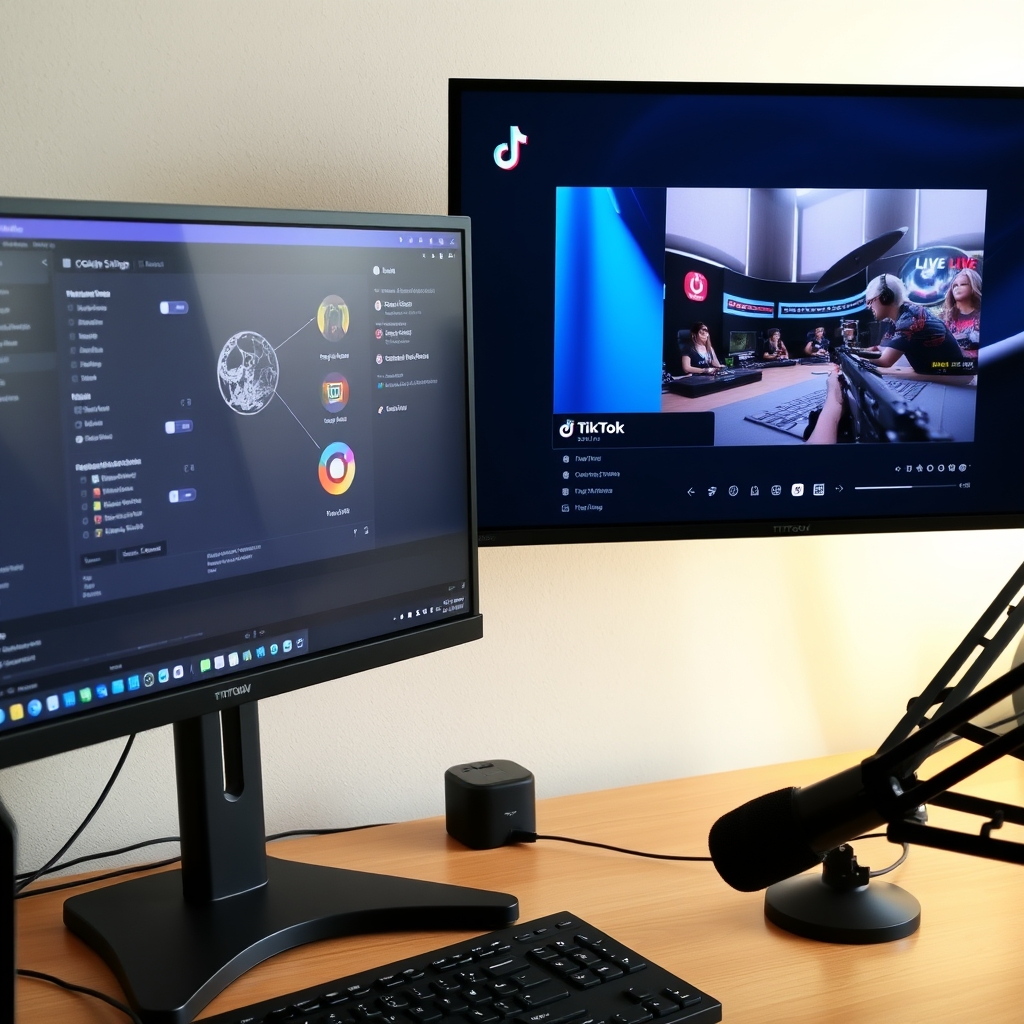
Streaming games on TikTok Live using OBS gives you professional-level control over your broadcast. Rather than using TikTok's built-in streaming, OBS lets you layer gameplay with overlays, alerts, and multiple camera sources.
Can I live stream on TikTok with OBS?
Yes, TikTok supports OBS as your broadcasting software. When you use OBS to stream to TikTok LIVE, OBS acts as the engine that captures your screen, manages your scenes, and sends the video feed to TikTok's servers. TikTok then receives that stream and displays it to your viewers in real time. This setup gives you complete control over what appears on screen without relying on TikTok Studio's built-in limitations.
OBS is free and runs on both macOS and Windows, making it accessible whether you are streaming from a Mac or PC. The software has been the industry standard for streamers across multiple platforms for years, which means you will find extensive documentation, community support, and tutorials specific to your setup.
The connection between OBS and TikTok works through stream key authentication. When you initiate a LIVE session on TikTok, the platform generates a unique stream key that you paste into OBS. OBS then uses that key to authenticate with TikTok's servers and begin transmitting your broadcast. No plugin or extension is required on TikTok's side; the integration is built into the platform.
Once your stream is live through OBS, you maintain full control over scene composition, source arrangement, and output quality. You can switch between multiple camera angles, layer graphics and overlays, adjust audio levels, and apply filters—all from within OBS—before the final video reaches TikTok viewers. This flexibility is especially valuable if you plan to run interactive games alongside your stream, since you can position game windows, alerts, and on-screen elements exactly where you want them.
If you are planning to add interactive games to your OBS setup, tools like TikGami integrate directly into OBS as a virtual camera source. This means your game appears as another scene or source that you can toggle on and off, mix with other elements, or display full-screen—all while managing everything from OBS. The result is a polished, professional broadcast that feels seamless to viewers who see only the final output on their TikTok feed.
How do I find my TikTok stream key for OBS?
Your TikTok stream key is a unique identifier that tells OBS which TikTok account to broadcast to. Without it, OBS cannot authenticate your connection to TikTok LIVE. The stream key acts as a secure link between your streaming software and your TikTok account, so you need to locate it before you can start streaming.
To find your stream key, start by logging into TikTok Creator Center on your desktop computer. Open your web browser and navigate to the Creator Center, then locate the LIVE dashboard on the left sidebar. Once you are in the LIVE section, look for an option labeled 'Get Started' under Stream Key or find a settings menu within TikTok LIVE Studio itself. The exact location can vary slightly depending on whether TikTok has updated its interface, but it is always within the LIVE or streaming settings area.
When you locate the stream key section, you will see a long string of characters. This is your unique stream key. Click the copy button next to it or manually select and copy the entire string. Paste this key into OBS by going to Settings, then Stream, then entering the stream key in the designated field. Make sure you copy the entire string without any extra spaces or characters, as even a single typo will prevent OBS from connecting to your account.
Security is important: treat your stream key exactly like a password. Never share it publicly, do not post it in screenshots or videos, and do not type it where others can see your screen. If you suspect someone has seen your stream key, you can regenerate it immediately from the same Creator Center menu. Regenerating creates a brand new stream key and invalidates the old one, so any unauthorized person using the old key will no longer be able to broadcast to your account.
You can regenerate your stream key anytime without losing your account or settings. Many streamers regenerate it periodically as a routine security practice, especially if they have shared their screen during setup or troubleshooting sessions. Once you have your stream key safely entered into OBS, you are ready to move on to configuring the rest of your OBS settings for TikTok LIVE streaming.
What are the correct OBS settings for TikTok LIVE?
Getting your OBS configuration right is essential for a smooth broadcast on TikTok LIVE. The settings you choose affect stream quality, stability, and how well your game displays to viewers. Since TikTok has specific technical requirements, matching those parameters ensures your stream reaches viewers without buffering, lag, or quality degradation.
Start with your video codec. OBS should use H.264 for video encoding. This codec is widely supported and guarantees compatibility with TikTok's infrastructure. It also balances quality against file size, which matters when streaming over variable internet conditions.
Resolution and frame rate work together. Set your resolution to either 1080p (1920×1080) or 720p (1280×720). Most streamers choose 720p for reliability, especially if your upload speed is inconsistent. Frame rate should be 30fps or 60fps—avoid variable frame rates, as they can cause sync issues with TikTok LIVE and with games running inside OBS.
Bitrate is the amount of data you send per second. Configure your video bitrate between 2,500 and 8,000 kbps depending on your internet connection. If you have a stable 10 Mbps upload speed, 6,000 kbps works well. On weaker connections, start at 2,500 kbps and increase gradually. For audio, 128 kbps is typically sufficient to carry voice and game sound clearly without consuming unnecessary bandwidth. When you use TikGami as a game source in OBS, these same settings apply to the entire broadcast, so the game displays cleanly alongside your camera and other overlays.
Test your settings before going live by streaming to a private YouTube channel or using OBS's built-in preview. Watch for dropped frames or encoder overload warnings in OBS's stats panel—if you see them, lower your bitrate or resolution slightly.
Do I need a minimum follower count to go live on TikTok?
Yes, TikTok enforces a minimum follower requirement before you can access the LIVE feature. In most regions, you need at least 1,000 followers to unlock the ability to go live. However, this threshold can vary depending on your location, account age, and whether TikTok has flagged any community guideline violations on your profile.
Your account must also meet several other baseline requirements. You need to be at least 18 years old, and TikTok verifies that your account is authentic before granting LIVE access. New accounts may experience delays in receiving this feature, even after reaching the follower threshold, because TikTok rolls out LIVE capability gradually to prevent abuse.
If your account has received strikes or warnings for violating TikTok's community guidelines, you may be temporarily or permanently restricted from going live, regardless of follower count. TikTok takes policy compliance seriously and uses it as a gate for feature access. You can check your account status and see whether LIVE is available by opening the Creator Center on the TikTok app or visiting your account settings.
For a more detailed breakdown of regional differences and what to do if you do not see the LIVE option yet, refer to how many followers you need on TikTok to go live by region. Once you meet the requirements and enable LIVE, you can set up OBS and external tools like TikGami to enhance your broadcast with interactive games and overlays.
If TikTok notifies you that LIVE is not yet available on your account, check your Creator Center notifications regularly—the feature typically becomes available within a few weeks or months as your account demonstrates consistent, compliant activity.
How does TikGami integrate with OBS for interactive games?
TikGami is a desktop app for macOS and Windows that transforms your TikTok LIVE stream into an interactive gaming experience. Instead of running a traditional game on your screen, TikGami reads your live chat in real time—comments, likes, and gifts—and converts that activity into playable game mechanics that overlay on your broadcast.
The integration with OBS works through a virtual camera source. When you launch TikGami and start a game, the app creates a video input that appears in OBS as though it were a webcam or capture card. You add this TikGami virtual camera to your OBS scene exactly as you would any other video source: right-click your scene, select Add Source, choose Video Capture Device, and select the TikGami camera. From that moment onward, the live game renders directly into your OBS output and streams to your TikTok LIVE room.
What makes this setup secure and fair is that all game logic runs on TikGami's servers, not in your browser or on the viewer's device. This means viewers cannot manipulate the game mechanics, cheat the outcome, or alter how the game responds to their comments and gifts. Each interaction—a comment, a like tap, or a gift send—is processed server-side and reflected in the game state immediately. Viewers do not need to install anything; they play purely through TikTok's native features.
The workflow is straightforward. Open OBS, add the TikGami virtual camera to your scene, launch your chosen game in the TikGami app, and start your TikTok LIVE stream as usual. Your OBS settings, stream key, and bitrate remain unchanged. The only new element is the video source from TikGami. If you are setting up TikGami alongside OBS for the first time, a step-by-step guide to putting a game on TikTok LIVE walks through the full process.
This approach keeps your stream setup clean and your production pipeline simple. Whether you are running alerts, overlays, or other scenes in OBS, the TikGami camera integrates as a single, reliable source—no plugin installation, no software conflicts, and no performance overhead beyond what a normal camera input would use.
Turn those gifts into a game on screen
TikGami turns comments, likes and gifts into games your viewers control live. Free for macOS and Windows.
Get TikGami freeQuick answers
What internet speed do I need to stream games on TikTok with OBS?
A minimum upload speed of 5 Mbps is recommended for stable 720p streaming at 4,500 kbps bitrate. Higher bitrates (6,000–8,000 kbps) for 1080p require 8 Mbps or more. Test your connection beforehand using a speed test tool and reduce bitrate if you experience lag or dropped frames.
Can I stream the same OBS feed to TikTok and Twitch at once?
Yes, OBS supports simultaneous streaming to multiple platforms using the multistream feature or third-party services. However, TikTok and Twitch have different technical requirements, so you may need to adjust bitrate and resolution to find a middle ground. Keep in mind that simultaneous streams demand higher upload bandwidth.
Why is my TikTok stream key not working in OBS?
Verify that you copied the key exactly without extra spaces. Check that your TikTok account meets LIVE eligibility (1,000 followers, 18+ years old, no community violations). Ensure OBS has the correct server URL (rtmps://live.tiktok.com:443/rtmp/) and that your internet connection is stable. If issues persist, regenerate the stream key in Creator Center.
How do I add interactive games to my TikTok LIVE stream via OBS?
Use TikGami, a desktop app that creates games from viewer comments, likes, and gifts. The app renders a virtual camera source that you add to your OBS scene. Simply select the TikGami virtual camera as a source in OBS, and the game appears in your broadcast. Viewers play by engaging with comments and gifts—no additional setup required from them.
Is there a delay between what I see in OBS and what viewers see on TikTok?
Yes, there is typically a 3–8 second streaming delay depending on network conditions and TikTok's servers. This is normal for live broadcasting. Plan your callouts and game actions with this latency in mind, and remind viewers that chat comments they see may reflect events from a few seconds earlier.