TikGami vs TikFinity: Which Tool Works Better for Live Streaming
TikFinity is a popular overlay and alert tool, but several alternatives handle different jobs in the TikTok LIVE space, from interactive games to moderation and donation alerts. TikGami focuses on turning viewer comments, likes, and gifts into playable games rendered as a virtual camera source, while Streamlabs and TikControl specialize in alerts and widgets. Choose based on whether you need game mechanics, real-time notifications, or full streaming control.
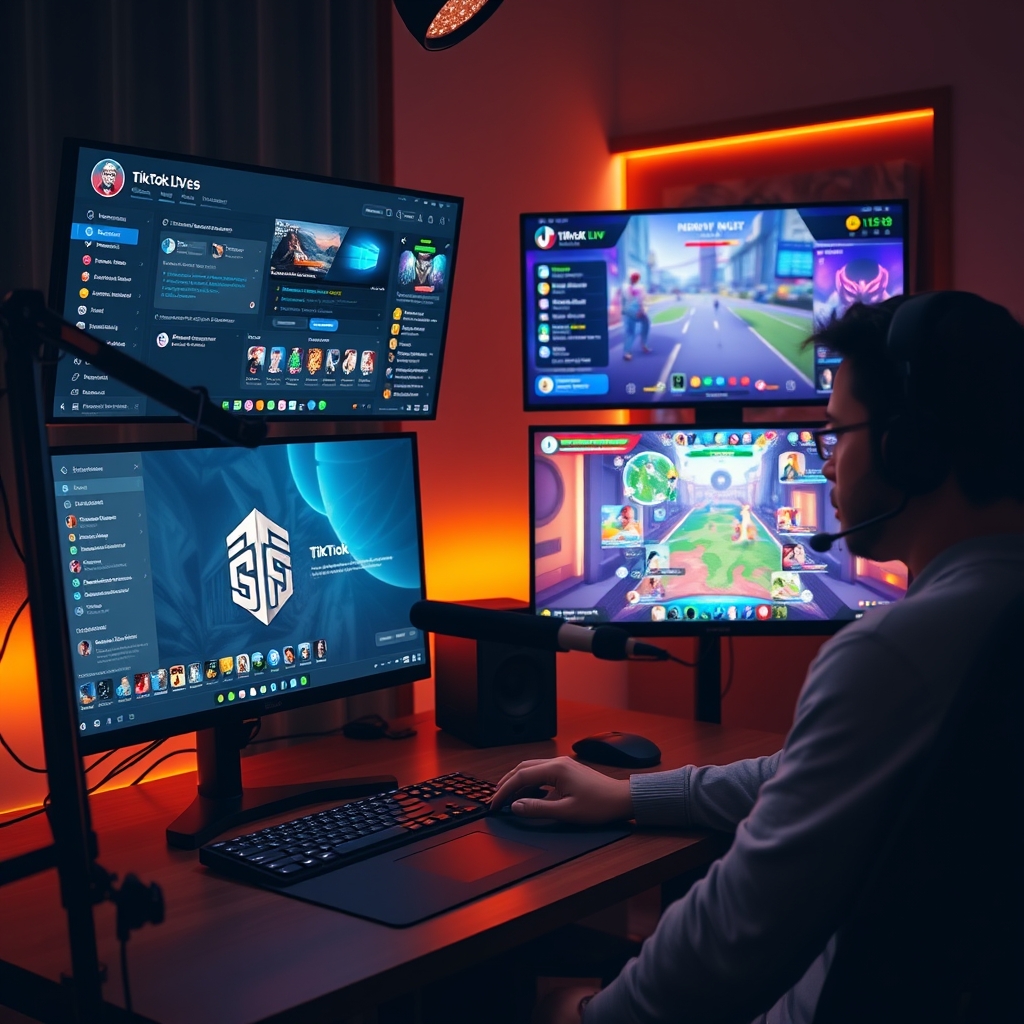
TikFinity has carved out a niche as a TikTok LIVE companion, but it is not the only tool in the space. Depending on what your stream needs—whether engagement mechanics, alert layers, or moderation—other platforms may fit your workflow better.
This guide compares how alternatives stack up against TikFinity and explains what each one does best.
What does TikFinity do and why do streamers look for alternatives?
TikFinity is built around real-time notifications and overlay customization. When a viewer sends a gift or engages with the stream, TikFinity triggers alerts, plays sounds, displays text-to-speech announcements, and renders widgets on screen. For streamers who want immediate visual and audio feedback every time someone interacts, it delivers that workflow smoothly. The tool focuses on making gifts and comments feel rewarding and visible to everyone watching.
However, not every streamer needs the same feature set. A creator running a casual community stream might want TikFinity's alert system, while another hosting a game-driven broadcast needs something different. This is where alternatives matter. Some streamers seek game-based engagement tools that turn comments and gifts into playable mechanics on screen, rather than static notifications. Others prioritize advanced moderation across multiple platforms, lower latency, or integration with third-party services that TikFinity does not support. A few need specialized depth in one area rather than a tool that tries to do everything at once.
The core reason streamers look for alternatives is fit. TikFinity excels at alerts and overlay widgets, but it is not designed to run interactive games, manage complex moderation rules, or broadcast to YouTube and Twitch simultaneously from the same interface. If your goal is to build a game that viewers play by commenting or sending gifts—where the game logic runs server-side and renders as a camera source in TikTok LIVE Studio—you would reach for a tool like TikGami instead. If you need both alerts and games, some streamers run multiple tools side by side.
The choice depends on your broadcast style and the specific problems you want to solve. Understanding what each tool does best helps you pick the right companion for your stream.
How does TikGami differ from TikFinity as a streaming tool?
TikGami and TikFinity serve fundamentally different purposes on TikTok LIVE, even though both integrate with your stream. The core difference lies in what they deliver to your audience.
TikGami is built entirely around interactive games that respond to viewer engagement. When someone comments, taps the like button, or sends a gift, those actions trigger game mechanics in real time. The game itself becomes the on-screen content—a virtual camera source that you select in TikTok LIVE Studio or OBS. Viewers play simply by doing what they already do on LIVE: commenting, liking, and sending gifts. No extra app, no login required. The game logic runs server-side within TikGami, so the experience is stable and tamper-proof.
TikFinity takes a different approach. It focuses on alerts, sounds, text-to-speech reactions, and overlay notifications. When a viewer sends a gift or types a comment, TikFinity triggers an audio cue, displays an alert box, or reads text aloud. These elements sit alongside your regular stream content rather than replacing it with structured gameplay. TikFinity is about enhancing reactions to viewer actions, not turning those actions into a playable experience.
In practical terms, choose based on your goal:
- If you want your audience actively playing a game that responds to their engagement, TikGami delivers that full game experience as a camera source.
- If you want notifications, sounds, and visual feedback for gifts and comments while your regular content plays, TikFinity handles that layer.
Both tools can coexist in a stream setup. Many streamers use one for gameplay and the other for event feedback, though that depends on your content style and audience. The key is recognizing that TikGami replaces the camera feed with interactive content, while TikFinity enhances the existing feed with reactions.
Which TikTok LIVE tools work best for alerts and notifications?
If your main goal is catching every gift, follow, and chat moment as it happens, alert-focused tools are a solid choice. Streamlabs is one of the most widely adopted options across streaming platforms, offering customizable gift alerts, follow notifications, and chat widgets that you can style to match your branding. The tool layers on top of your stream as an overlay, meaning your main content stays intact while alerts pop up in a corner or elsewhere on screen.
TikControl takes a similar overlay-first approach but is purpose-built specifically for TikTok LIVE rooms. It handles real-time alerts for incoming gifts and follows, and includes moderation features to help you manage the chat in fast-paced streams. Like Streamlabs, it sits alongside your existing broadcast rather than replacing it, so you maintain full control over your primary scene layout.
The key difference between these tools and something like TikFinity is the scope. TikFinity mixes alerts with text-to-speech, sounds, and action triggers — it tries to do several jobs at once. Streamlabs and TikControl are narrower: they excel at what they do (notifications and overlays) and don't clutter the experience with unrelated features.
When to choose alert tools: Pick these if you want lightweight, non-intrusive notifications without changing how your stream looks or plays. They work well if you already have a solid overlay setup in TikTok LIVE Studio or OBS and just need to add visual or audio cues when viewers engage.
Both Streamlabs and TikControl integrate with common streaming software, so you can drop them into your workflow without major reconfiguration. The trade-off is that they are notification tools first, not engagement tools — they alert you but do not actively turn viewer interaction into on-stream gameplay.
Can you use multiple TikTok LIVE tools at the same time?
Yes. Most active streamers run multiple tools simultaneously because each one solves a different part of the broadcast. You might use one tool for alerts when viewers send gifts, another for on-screen games, and a third for chat moderation or commands. There is no technical restriction preventing you from combining them.
The reason this works is that each tool integrates independently with either OBS or TikTok LIVE Studio. A tool does not need exclusive access to your broadcast. An alert tool adds a widget overlay. A game tool adds a virtual camera source. A moderation tool watches chat in the background. They operate in parallel without forcing you to choose one or the other.
How to layer multiple tools without conflict
- Assign each tool a separate scene layer or input. In OBS, add alert overlays on one layer and a game camera source on another. In TikTok LIVE Studio, stack widgets without overlapping critical areas where viewers need to see game elements or alerts.
- Monitor your CPU load. Running three or four active tools at once draws more system resources than running one. If your computer starts to stutter or drop frames, disable tools you are not actively using during that broadcast.
- Test switching between scenes before going live. If you plan to switch between a game scene and a regular broadcast scene, make sure both load without lag or missing elements. Load time matters when you are on air.
- Check for webhook or event conflicts. Some tools listen for the same viewer actions (like gift sends). If two tools respond to gifts at the same time, their animations or sounds might overlap. Read each tool's documentation or disable duplicate triggers in one of them.
The key insight is that tools are designed to complement, not replace, each other. A streamer using TikGami for games and TikFinity for alerts is not forced to pick a side. Both serve the stream. The work is on your end to arrange them so they do not create lag, visual clutter, or conflicting messages to your audience.
What should you look for when choosing a TikTok LIVE companion tool?
The right companion tool depends on what you want to accomplish during your stream. Start by defining your primary need: are you looking to drive engagement through interactive games, do you need real-time alerts when viewers send gifts or follow, or do you want chat moderation and moderation features? Some tools specialize in one area, while others bundle multiple functions together. Knowing your priority helps you avoid paying for features you will never use.
Platform compatibility matters more than most streamers realize. Some tools work exclusively on desktop—for example, TikGami runs on macOS and Windows only and integrates directly into your streaming setup via a virtual camera source that you select in TikTok LIVE Studio or OBS. Other tools offer mobile apps or web dashboards, giving you control from your phone or any browser. Before you commit to a paid plan, confirm that the tool works on the devices and operating systems you actually use during your broadcasts.
Test three critical technical factors before going live with a new tool:
- Latency: Check how quickly the tool responds when viewers send gifts, comments, or likes. Lag between the action and the on-screen reaction breaks immersion and frustrates your audience.
- Reliability during peak traffic: A tool that works smoothly with 500 viewers may struggle when you hit 5,000. Ask for a trial period and stream during high-traffic times to stress-test stability.
- Ease of setup: If integration takes an hour of troubleshooting, you will lose time before your stream starts. Look for tools with clear documentation and quick onboarding.
Many streamers benefit from testing a free trial or free plan before investing in a subscription. This approach lets you evaluate whether the interface matches your workflow and whether the feature set actually improves your stream quality. Once you know what works for your audience, you can confidently choose a paid plan that fits your needs.
Turn those gifts into a game on screen
TikGami turns comments, likes and gifts into games your viewers control live. Free for macOS and Windows.
Get TikGami freeQuick answers
Is TikGami a better choice than TikFinity?
Not necessarily better, just different. TikGami excels if you want interactive games that viewers play via comments, likes, and gifts. TikFinity is stronger for alert layering and text-to-speech reactions. Many streamers use both: TikGami for the game mechanic and TikFinity for notifications. Choose based on what engages your audience most.
Can I use TikGami and TikFinity together on the same stream?
Yes. TikGami renders games as a virtual camera source that you add to your TikTok LIVE Studio or OBS scene, while TikFinity runs as overlay widgets. They operate independently, so you can layer them without conflict. Just monitor your system resources if both are active simultaneously.
Do I need to pick one TikTok LIVE tool or can I experiment with multiple?
Experiment freely. Most tools offer free trials or freemium plans so you can test them without upfront cost. Try TikGami for games, Streamlabs for alerts, and TikFinity for text-to-speech to see which combination feels natural for your stream and audience.
What is the main difference between TikControl and TikFinity?
TikControl emphasizes real-time alerts and moderation for TikTok LIVE, while TikFinity adds sound effects, text-to-speech, and more elaborate action triggers. If moderation is your priority, TikControl leans that way; if you want sound and engagement reactions, TikFinity is more feature-rich.
Do alternatives to TikFinity work on mobile or only desktop?
It depends on the tool. TikGami is desktop only (macOS and Windows). Streamlabs and some web-based tools offer mobile dashboards for monitoring. Check the tool's system requirements before committing, especially if you plan to manage your stream from a phone.