How to Go Live on TikTok: Requirements and Setup
Going live on TikTok requires you to meet TikTok's eligibility criteria, which include a minimum follower count and age requirement that vary by region. Once eligible, you can start a livestream directly from the LIVE icon in your feed by tapping it, selecting your audience settings, and going live. The platform allows you to stream solo or with friends, accept gifts from viewers, and manage your broadcast in real time.
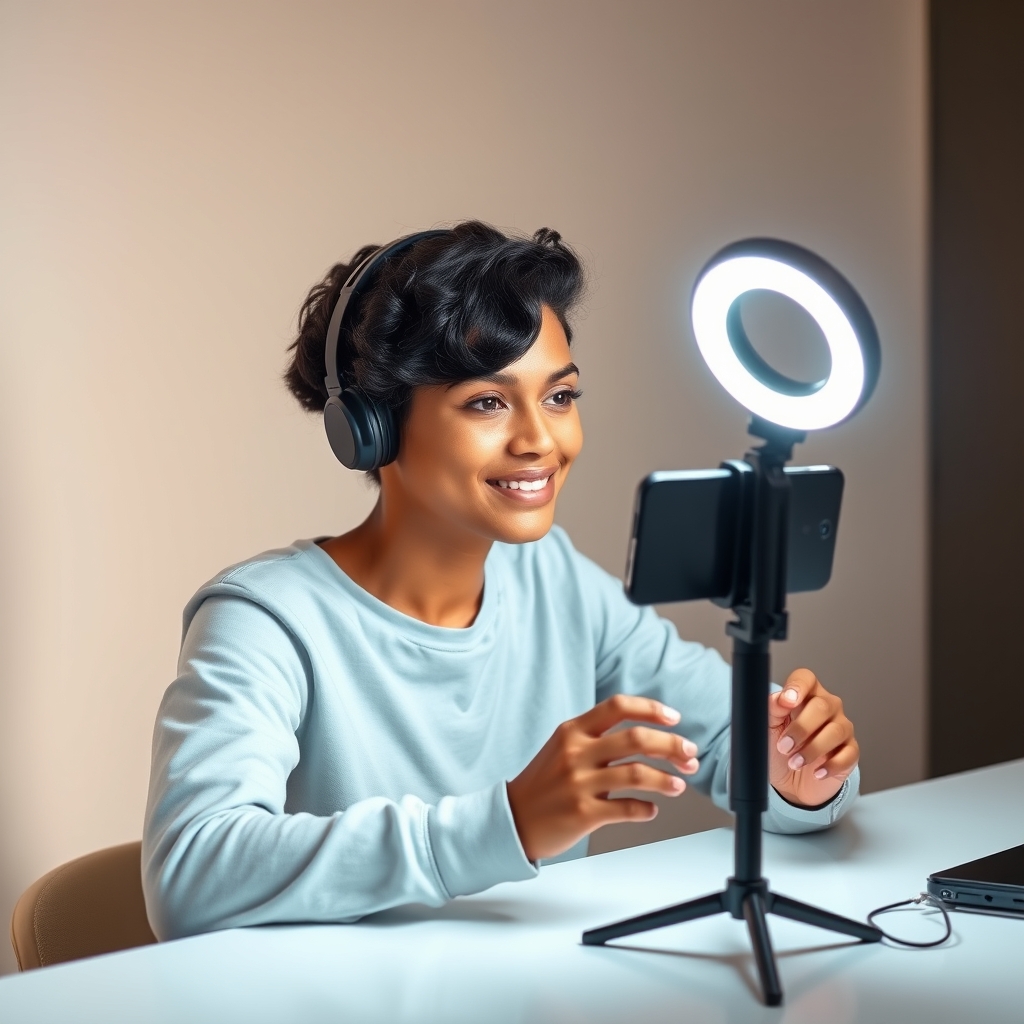
Starting a TikTok live stream is straightforward once you pass TikTok's eligibility requirements. The process takes just a few taps, but understanding what you need beforehand saves time and frustration.
What are TikTok's eligibility requirements to go live?
TikTok requires you to meet several basic criteria before you can access the LIVE feature. The most visible requirement is a minimum follower count. TikTok sets this threshold, and it is not the same everywhere—the exact number depends on your region and can change over time. Rather than guessing, the clearest way to find out if you qualify is to open the LIVE section of your TikTok app. If you are eligible, the button will be active. If you are not, the app will tell you what you are missing.
Age is another hard requirement. You must meet TikTok's minimum age to go live in your region. Keep in mind that the age threshold for receiving gifts during a LIVE stream is higher than the threshold for going live itself, and these minimums vary by country. This means you might be able to broadcast but not yet accept gifts from viewers, depending on how old your account is.
Your account must also be in good standing. If you have violated TikTok's Community Guidelines recently, you will not be able to go live until the violation is resolved or the penalty period expires. Account violations are taken seriously and can block LIVE access even if you meet all other requirements.
Some regions impose additional restrictions beyond follower count and age. These may include verification requirements, account history thresholds, or other regional policies. The most reliable way to check your personal eligibility status is to navigate to the LIVE section directly in your app—TikTok will show you exactly what you need to do next. If you see a message saying you cannot go live, it is almost always because of one of these reasons: insufficient followers, not meeting the age requirement, a recent Community Guidelines violation, or a region-specific restriction. Updating your app to the latest version can also resolve unexpected blocks, since older versions sometimes fail to display the LIVE option even when your account qualifies.
How do you start a TikTok live stream on mobile?
Starting a TikTok LIVE stream on your phone takes just a few steps. The process is straightforward once you know where to find the LIVE button and what settings to configure before you go on air. Most of the work happens before broadcasting—choosing your title, privacy level, and permissions—so your stream is ready the moment you tap the final button.
Open the TikTok app and look for the LIVE icon in your top navigation bar. On most accounts, you will see it near the inbox or search icons. If you cannot spot it there, swipe left to the Discover tab and look for a LIVE button or banner. This button only appears if your account meets TikTok's eligibility requirements for going live.
Once you tap the LIVE button, TikTok will ask for permission to access your camera and microphone. Grant both permissions so viewers can see and hear you during your broadcast. Without camera access, you cannot stream video, and without microphone access, your audio will not transmit. Allow these permissions the first time, and TikTok will remember your choice for future streams.
Before you go live, you must enter a title for your broadcast. This title describes what you are streaming and appears to your followers in their feed and in search results. Keep your title clear and specific—viewers are more likely to join if they know exactly what they are about to watch. You can change your title before starting, but not while you are already broadcasting.
Next, choose your privacy setting to control who can view your stream. TikTok typically offers options such as public (anyone can join), followers only, or friends only. Select the setting that fits your comfort level and the nature of your content. Once your stream is live, the privacy setting is locked, so decide this before you go on air.
When you have entered your title and chosen your privacy level, tap the 'Go LIVE' button to start broadcasting to your followers. Your stream will appear in their feed immediately, and comments and gifts will begin flowing in as people join. Remember to check your camera angle and lighting before you tap that final button.
Can you go live on TikTok without 1000 followers?
No. TikTok enforces a minimum follower threshold before you can access the LIVE feature. This requirement exists to prevent spam, reduce abuse, and maintain the quality of live streams on the platform. You cannot bypass this threshold through any workaround or setting adjustment.
The exact follower count required varies by region and may also depend on your account age and history. TikTok does not publicly announce a single global number, which means the requirement for one creator in the United States may differ from another in a different country or region. This flexibility allows TikTok to adapt its policies based on regional needs and platform conditions.
To check your current eligibility status, open the TikTok app and navigate to the LIVE section. If you meet the requirements, you will see the option to start a live stream. If you do not, the app will show you what you need to achieve in order to unlock the feature. This is the most reliable way to understand where you stand with your account.
Building your follower count is the only legitimate path forward. Focus on creating consistent, engaging content that resonates with your audience. Post regularly, respond to comments, use trending sounds and hashtags where appropriate, and collaborate with other creators. As your follower base grows, you will eventually meet the platform's eligibility criteria and gain access to LIVE.
If you have reached the follower threshold but still cannot go live, the issue may be a recent violation of the Community Guidelines, a regional restriction, or an outdated app version. Check that your app is fully updated and review your account status in the settings menu.
How do you end a TikTok live stream?
Ending your TikTok LIVE stream is straightforward. During your broadcast, look for the 'End LIVE' button, which is typically positioned at the bottom of the screen. The exact placement may vary slightly depending on your phone model and app version, but it is always visible and easy to locate once you know where to look.
When you tap the 'End LIVE' button, your broadcast stops immediately. Viewers currently watching will see the stream end, and new viewers can no longer join. The connection closes, and your camera and microphone are deactivated. This action is final—once you end the stream, you cannot resume broadcasting to the same session.
After you end your LIVE, TikTok presents you with an important choice: save the replay or discard it. If you save the replay, the entire stream is uploaded to your profile as a video that followers can watch later. This is useful if you want to preserve the content for viewers who missed the live broadcast. If you choose to discard the replay, the stream is deleted and cannot be recovered, so the decision should be intentional.
Keep in mind that the replay option can be adjusted afterward if you change your mind. You can visit your profile, find the saved LIVE video, and delete it if you decide you no longer want it public. Additionally, check your privacy settings to control who can view your saved replays—whether all followers, friends only, or only you can see the recording.
Before ending, you might also want to remind viewers that the replay will be available so they can share it with others or refer back to it. This encourages engagement and extends the reach of your LIVE content beyond the initial broadcast window.
Can you go live on TikTok with an iPad or desktop?
TikTok's mobile app on iPhone and Android is the primary way to go live. The app gives you access to all LIVE features, including the ability to receive gifts from viewers. iPad support exists but depends on your app version and regional availability—some regions and older app versions may not enable LIVE streaming on tablets, so you might need to update or check your device settings to confirm whether the feature is available to you.
The TikTok web version, which you access through a browser on desktop or laptop, does not currently support going live. If you want to stream from a computer, you have one main option: LIVE Studio, TikTok's dedicated streaming tool for creators. LIVE Studio allows you to broadcast directly from your desktop using a web browser or third-party streaming software like OBS Studio, which many creators prefer for professional setups with custom overlays and multiple camera angles.
LIVE Studio is not available everywhere. Eligibility and regional access vary, so you should check whether the tool is enabled in your region before setting it up. When you open the LIVE section of the TikTok app or visit TikTok Studio on desktop, you will see whether LIVE Studio is available to you.
If LIVE Studio is not yet available in your location, streaming from mobile remains your option. You can position your phone on a stand or tripod to free your hands during a broadcast. For creators who do have access to LIVE Studio, desktop streaming removes the constraint of holding a phone and opens the door to more elaborate production—something worth exploring once you confirm it is available in your region.
Understanding where and how you can go live is just the start. Once you are streaming, the real engagement happens when viewers send gifts. If you want to understand how gift value translates to earnings and what tools help you optimize that moment, the TikTok gift list and coin calculator walks you through the mechanics so you know exactly what you are earning in real time.
Turn those gifts into a game on screen
TikGami turns comments, likes and gifts into games your viewers control live. Free for macOS and Windows.
Get TikGami freeQuick answers
How much money can you make on TikTok Live?
Earnings on TikTok Live come from gifts sent by viewers. When viewers purchase coins and send them as gifts, you receive diamonds, which are roughly half the coin value because TikTok retains a portion. Diamonds convert to money at a fixed rate of approximately USD 0.005 per diamond. Your total earnings depend entirely on how many gifts you receive and how often you stream; there is no guarantee of income.
How do you do a faceless live on TikTok?
TikTok does not have a dedicated faceless live mode, but you can stream content without showing your face by pointing your camera at objects, gameplay, screen recordings, or anything else you want to broadcast. During setup, choose your camera source and ensure it captures what you want to share rather than your webcam. Viewers can still send gifts and interact regardless of what is on screen.
Can you go live on TikTok without being 18?
TikTok has a minimum age requirement to go live, and a higher age requirement to receive gifts. The exact ages are set by TikTok and may differ by region. If you are below the threshold, TikTok will not show you the LIVE option in your app, even if you have enough followers. Check your app's LIVE section to see your eligibility based on your account's age and location.
Can you go live on TikTok with friends?
Yes, TikTok allows you to co-stream with other creators during a live broadcast. During your live, tap the invite icon or collaboration option to invite another creator to join your stream. Both creators must meet TikTok's eligibility requirements. Co-streaming is a way to reach both of your audiences and create more engaging content together.
Is TikTok Live free to use?
Yes, going live on TikTok is completely free once you meet the eligibility requirements. There are no streaming fees or subscription costs. Viewers can watch for free, and creators earn money only when viewers choose to send gifts. The LIVE Access Program offers additional features and support, but the basic live-streaming feature is available to all eligible accounts at no cost.